Setting up Screen Time as a parent
Setting up Screen Time as a parent
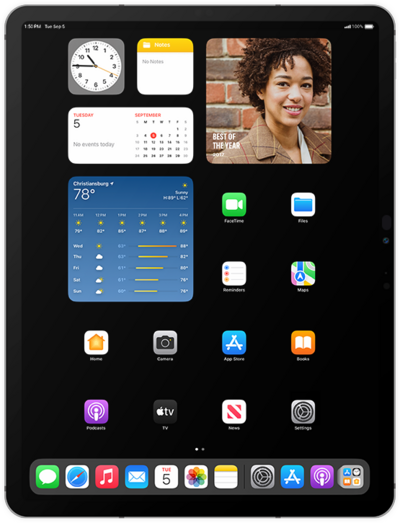
From within the Settings app, scroll to and tap Screen Time.
Select the family member you'd like to set up Screen Time for.
Tap Continue.
With Screen Time, you can limit when you can access certain apps on your iOS devices. During this time, only apps you select and phone calls will be available. These settings will apply to all your devices sharing the same Apple ID.
Tap Not Now.
Tap Not Now again.
Tap Not Now again.
Tap Turn On App & Website Activity.
Tap Start.
Select your preferred start time.
Scroll to and tap End.
Select your preferred end time.
Tap Turn On Downtime.
Select an app category.
You can select multiple app categories or tap All Apps & Categories.
Scroll to and tap Time Amount.
Select a time duration.
Tap Set App Limit.
With Screen Time, you can set restrictions for content, changes to account settings, and more. These settings will apply to all your devices sharing the same Apple ID.
Enter a passcode.
To access these features, you'll need to set up a Screen Time passcode. This is different than your Lock screen passcode.
Confirm your passcode.
From this next screen, you'll be able to set up customized downtime, app limits, and content restrictions for an individual account on your Family Sharing plan.
You've completed the steps!
