Using Live Translation
Using Live Translation
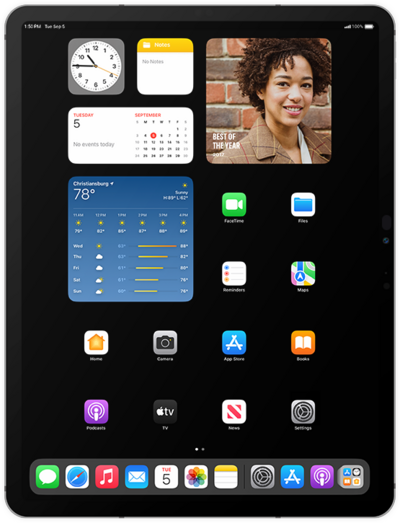
From a Messages conversation you wish to translate, tap the name of your recipient to view more options.
Tap or slide the Automatically Translate switch to ON.
Select the language to translate from.
After this step, your iPad will download the resources it needs to quickly translate for you. The following steps will show how to use Live Translate in phone calls and Facetime.
From an ongoing phone call, tap the More icon.
Tap Live Translation.
Choose the language to translate from, then tap Start Translation.
After this step, your iPad will download the resources it needs to quickly translate for you. When you no longer want to translate your call, tap Stop. The following steps will show how to use Live Translate in Facetime.
From a Facetime call, tap the More icon.
If necessary, tap the screen to make Facetime controls appear.
Tap Live Translation.
Choose the language to translate from, then tap Start Translation.
After this step, your iPad will download the resources it needs to quickly translate for you. When you no longer want to translate your call, tap Stop within the More menu. The following steps will show how to use Live Translate in Facetime.
You've completed the steps!
