Display
Display
In this tutorial, you will learn how to:
• Access display settings via web interface • Change screen brightness via device • Change screen timeout via device
Access display settings via web interface
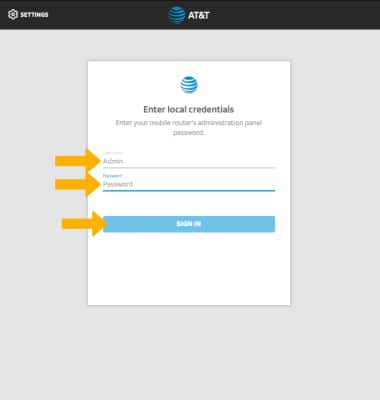
1. From your device's web browser, go to http://attwifimanager or type 192.168.1.1 into the search bar. Enter your Username and Password, then select SIGN IN. Note: Ensure that your device is connected to the Netgear Nighthawk's Wi-Fi network. For more information, please see the Connect Devices to Wi-Fi or Connect PC or Mac to Wi-Fi tutorials.
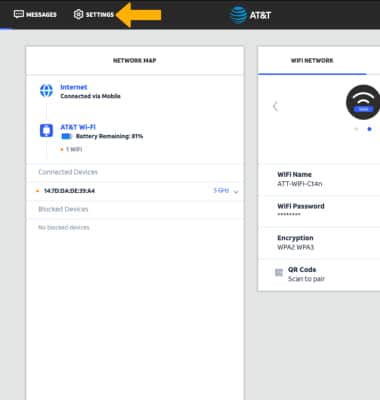
2. Select SETTINGS at the top of the page.
3. Select Advanced, then select Device.
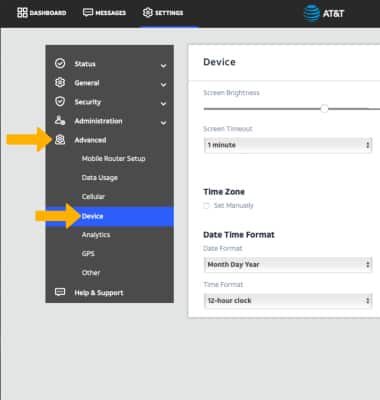
4. Adjust display settings as desired:
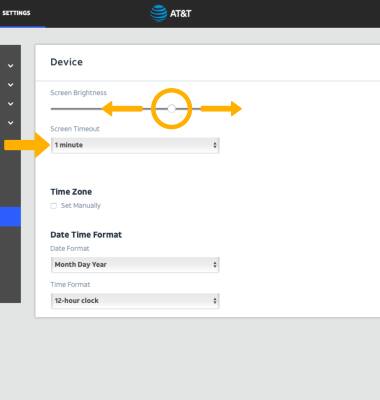
• ADJUST SCREEN BRIGHTNESS: Select and drag the Screen Brightness slider to the desired brightness.
• ADJUST SCREEN TIMEOUT: Select the Screen Timeout drop-down menu, then select the desired option.
Change screen brightness via device
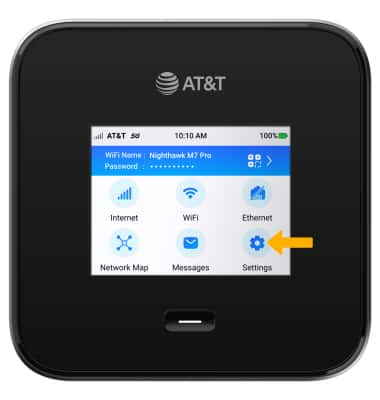
1. From the device home screen, select Settings.
2. Select Screen.
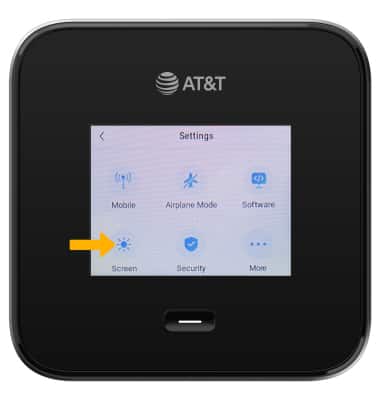
3. Select Screen Brightness.
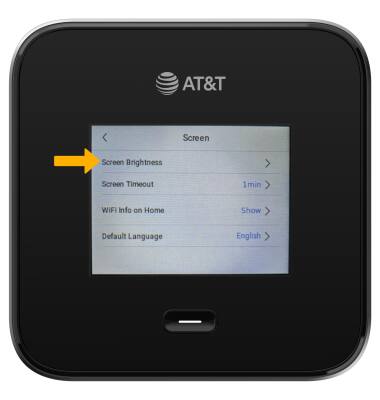
4. Select and drag the Brightness slider left to lower the screen brightness manually.
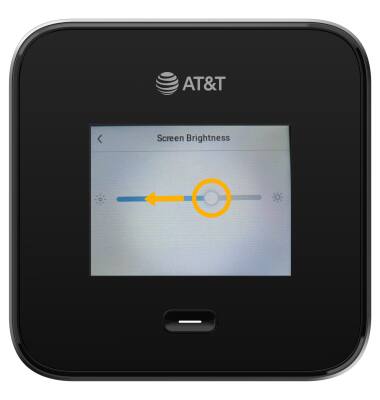
Change screen timeout via device
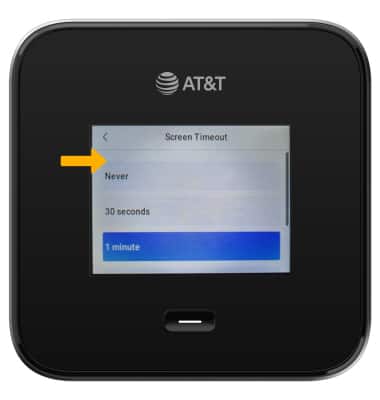
1. From the Screen menu, select Screen Timeout.
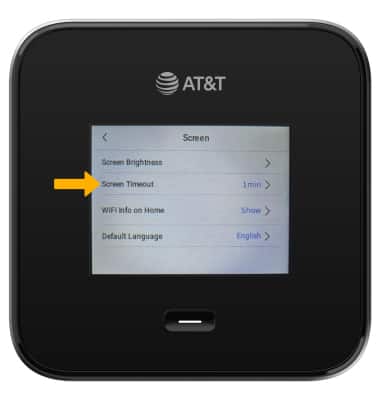
2. Select the desired option.
Note: Select OK to confirm.