Take a Screenshot
Take a Screenshot
In this tutorial, you will learn how to:
• Take a screenshot
• Delete a screenshot
• Share a screenshot
Take a screenshot
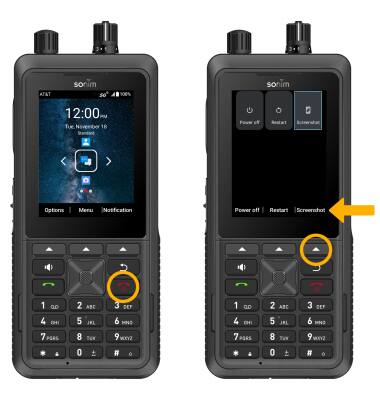
Press and hold down the Power/End Call button, then press the Right Dynamic key to select Screenshot.
Note: Alternatively, you can press the Power/End Call button and the Volume Down button at the same time to quickly take a screenshot.
Delete a screenshot
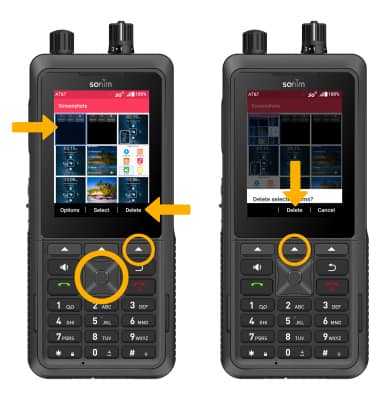
From the Gallery app, press the navigation keys to highlight the desired screenshot, then press the Right Dynamic key to select Delete. Press the Center Dynamic key to select Delete to confirm.
Note: To access screenshots, from the home screen, press the Center Dynamic key to access the Menu. Press the navigation keys and the Select button to select Applications > Gallery app.
Share a screenshot
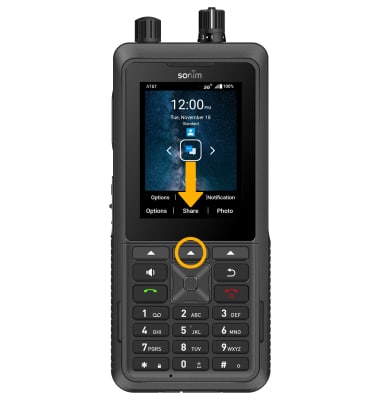
When viewing the desired screenshot, press the Center Dynamic key to select Share and follow the prompts to share the screenshot.