Send & Receive Messages
Send & Receive Messages
Access the Messaging Settings tutorial to manage settings.
In this tutorial, you will learn how to:
• Access messages
• Compose & send a message
• Respond to a message
• Delete a message
When a new message is received, the  New Message icon will display in the Notification bar.
Access messages
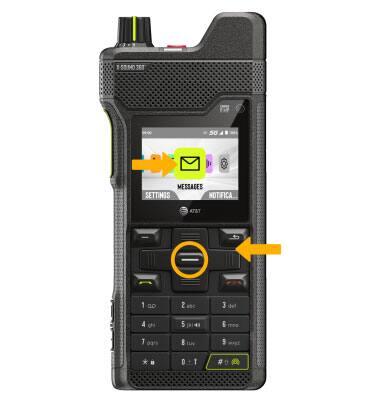
1. From the home screen, use the navigation keys to highlight MESSAGES then press the Select button.
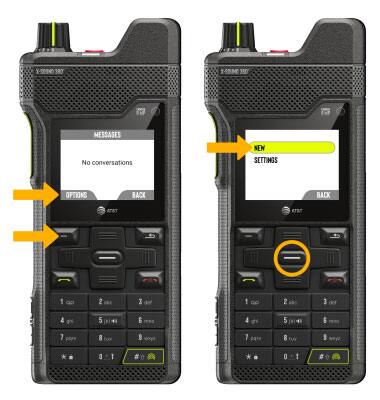
2. Press the Left option button to select OPTIONS. Ensure NEW is highlighted, then press the Select button.
Compose & send a message
Compose and send a message using the following options as desired:
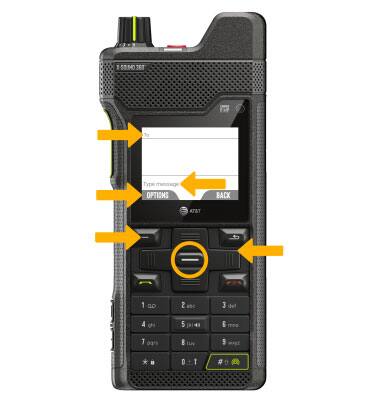
• ENTER RECIPIENT: Use the navigation keys to highlight the 'To' field, then use the keypad to enter the desired contact. With the 'To' field highlighted, press the Left option button to select OPTIONS to add a contact from the contacts list.
• ENTER MESSAGE: Use the navigation keys to highlight the 'Message' field, then use the keypad to enter the desired message.
• ADD ATTACHMENT: With the 'Message' field highlighted, press the Left option button to select OPTIONS. Use the navigation keys to highlight the desired option, then press the Select button.
• SEND A MESSAGE: When finished composing a message, highlight the 'Message' field and press the Left option button to select OPTIONS. Ensure SEND is highlighted, then press the Select button to send the message.
Note: To add additional recipient(s) and create a Group Message, enter the additional contact(s) then press the navigation key to highlight the 'Message' field. To remove recipient(s), press the Back button to delete the desired contact(s).
Respond to a message
From the desired message, select the desired option.
REPLY: Use the navigation keys to highlight the 'Message' field, then use the keypad to enter the desired message. When finished, press the Left option button to select Send.
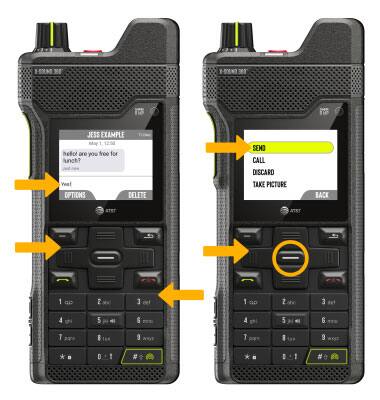
FORWARD: Use the navigation keys to highlight the desired message, then press the Left option button. Ensure FORWARD is highlighted, then press the Select button.
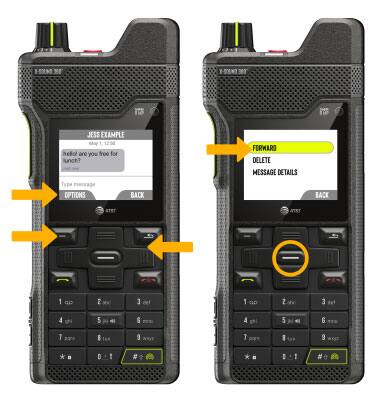
Delete a message
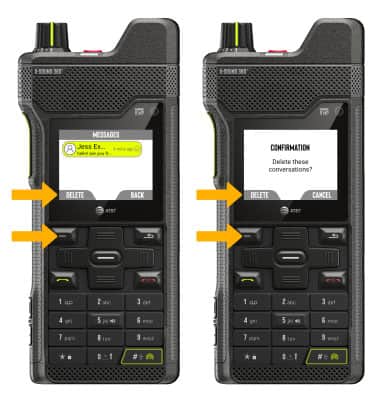
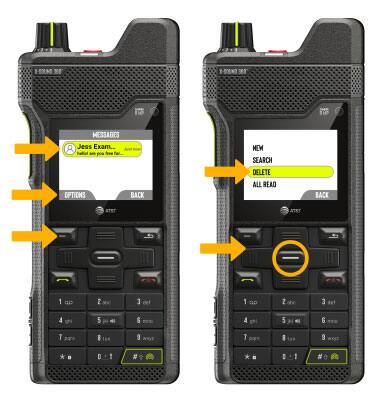
1. From the desired message thread, use the navigation keys to highlight the desired message then press the Left option button to select OPTIONS. Use the navigation keys to highlight DELETE, then press the Select button.
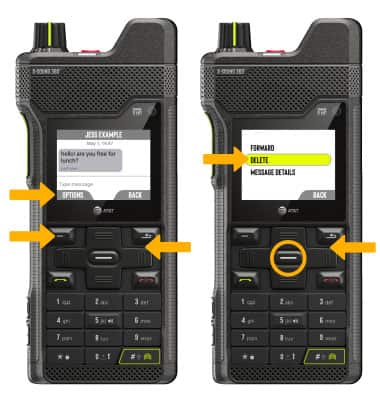
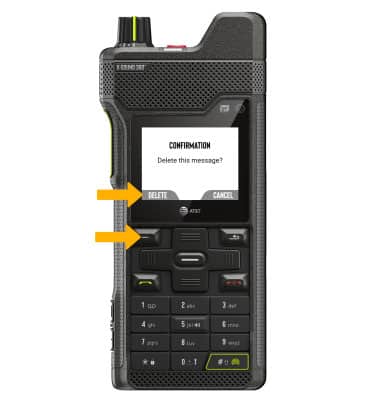
2. Press the Left option button to select DELETE.
DELETE MESSAGE THREAD: 1. From the Messages screen, ensure the desired message thread is highlighted, then press the Left option button to select OPTIONS. Use the navigation keys to highlight DELETE, then press the Select button to select.
2. Press the Left option button to select DELETE. Press the Left option button again to confirm.