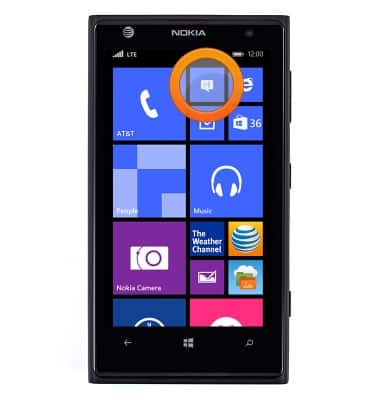
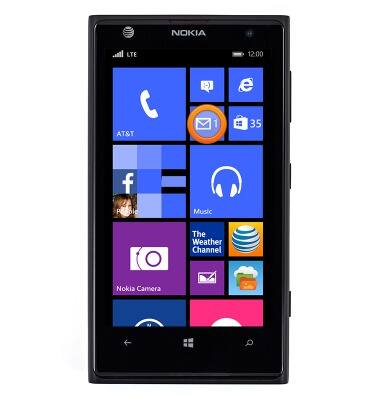
- From the Start screen, tap the Messaging tile.
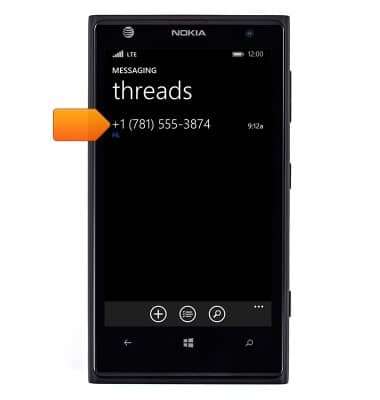
- Tap the view the desired message.
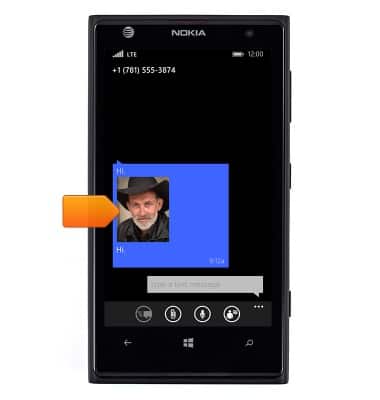
- Tap an attachment to view it.
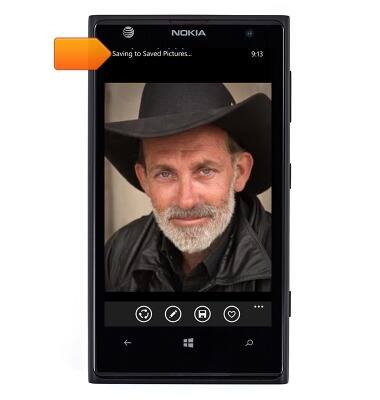
- To save the attachment, tap the Save icon.
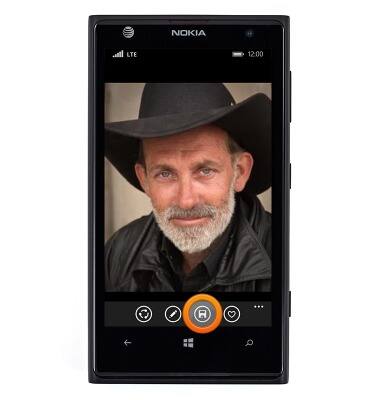
- The attachment will be saved to the indicated location.
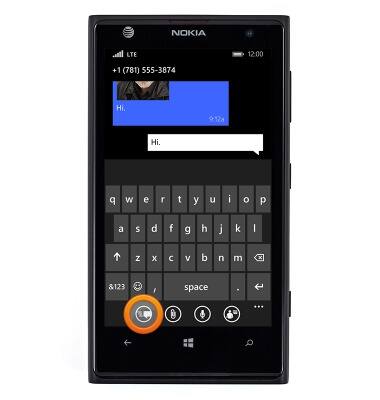
- To reply to a message, tap the Message field then enter the desired message.
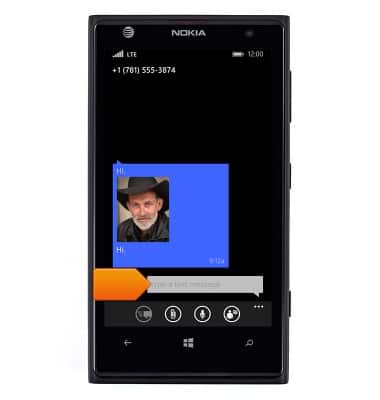
- Tap the Send icon to send.
- To delete a single message, touch and hold the desired message.
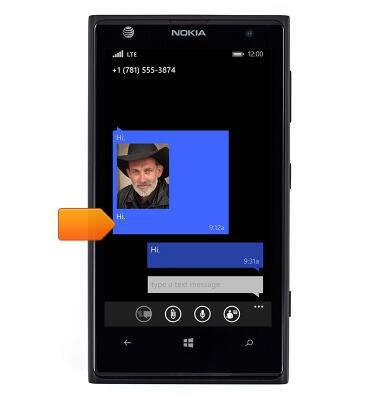
- Tap delete.
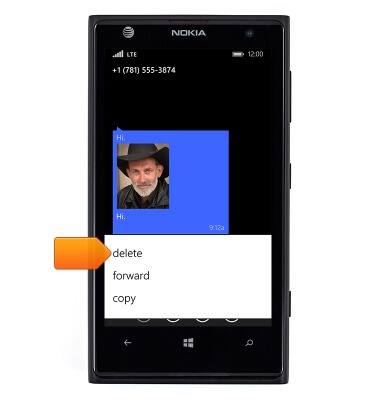
- Tap delete.
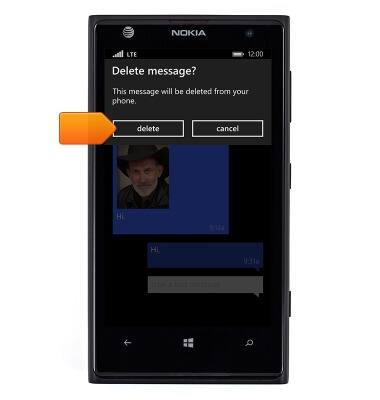
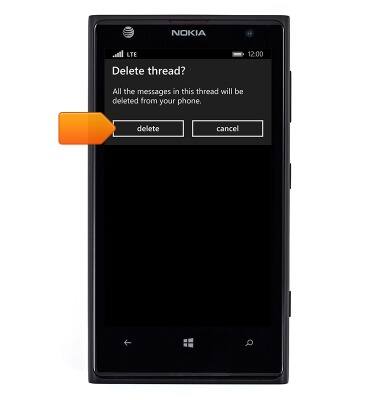
- To delete an entire message thread, touch and hold the desired thread in the messaging inbox.
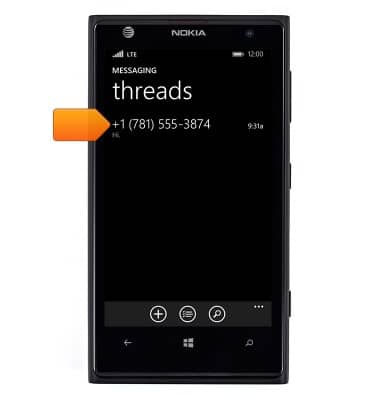
- Tap delete.
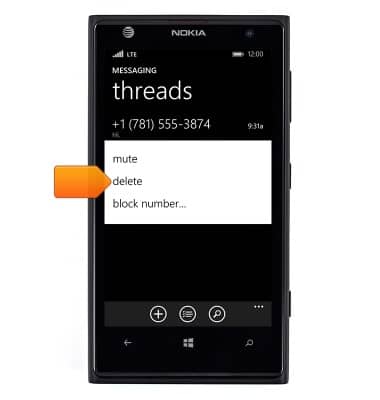
- Tap delete.
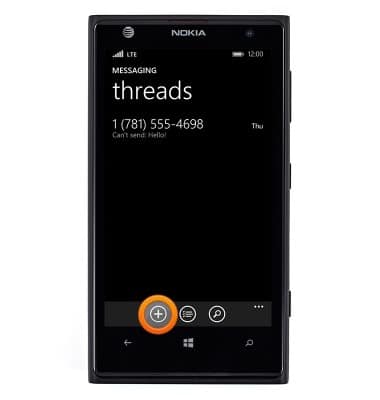
- To create a message, from the messaging inbox, tap the Plus icon.
- Enter the desired recipient name or phone number.
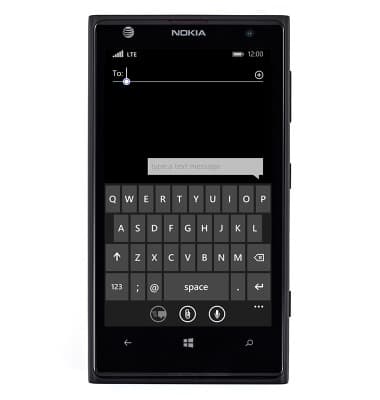
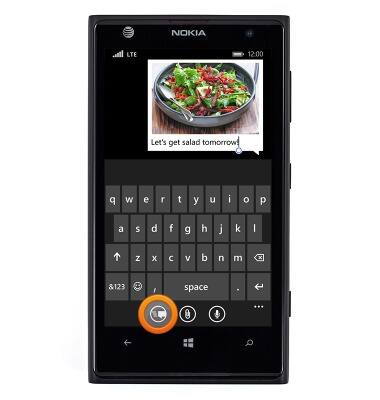
- Tap the Message field, then enter the desired message.
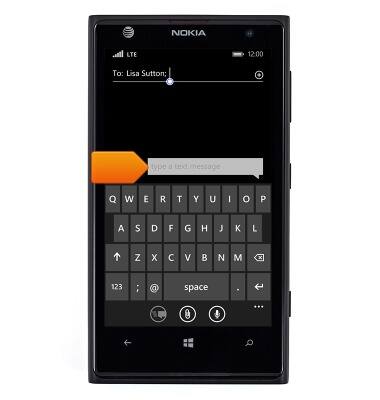
- To add an attachment, tap the Attachment icon.
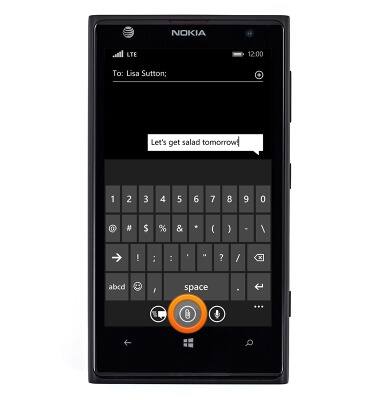
- Tap the desired option.
Note: 'picture' was selected for this demonstration.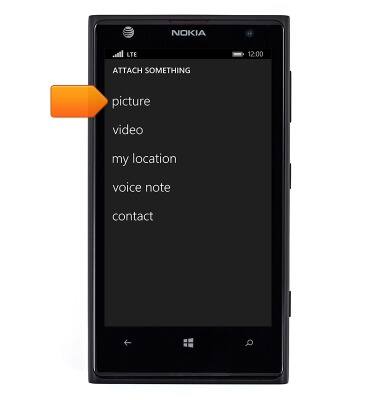
- Tap albums.
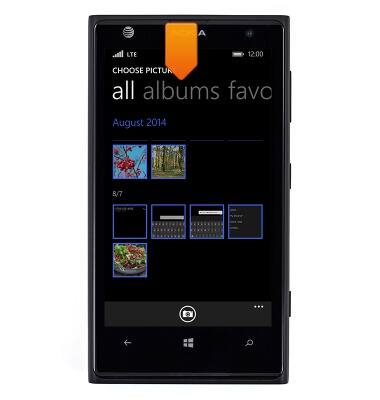
- Tap the desired album.
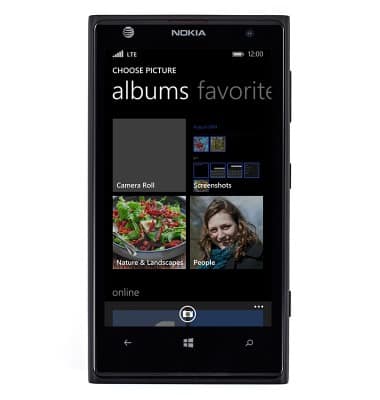
- Scroll to, then tap the desired image.
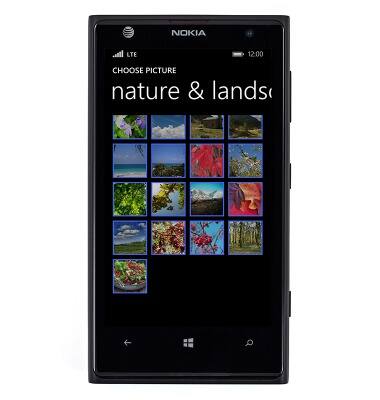
- Tap the Send icon to send the message.
- New messages are indicated by a number on the Messaging tile.
Send & receive messages
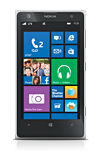
Nokia Lumia 1020
Send & receive messages
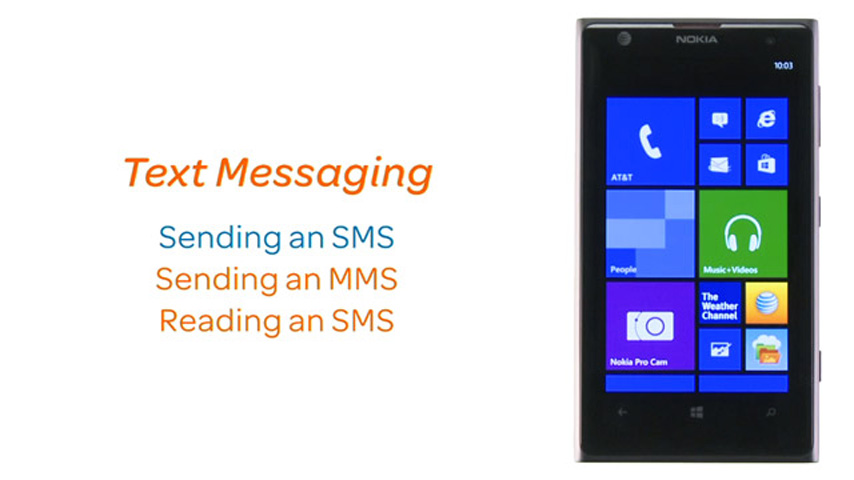
How to send, receive, and delete picture (MMS) and text (SMS) messages.
Text messaging
Send and read text messages, send a photo via text.
Text messaging
1:25
INSTRUCTIONS & INFO