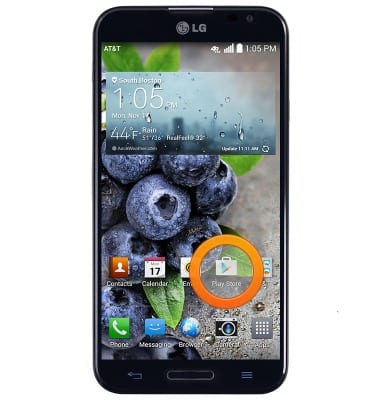
- From the home screen, tap Play Store.
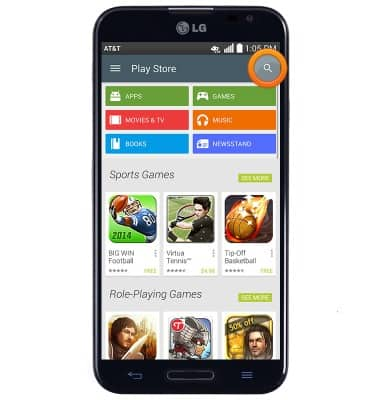
- Tap the Search icon.
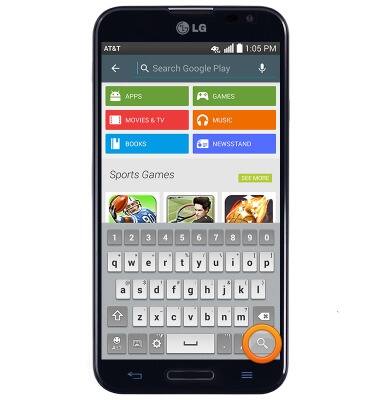
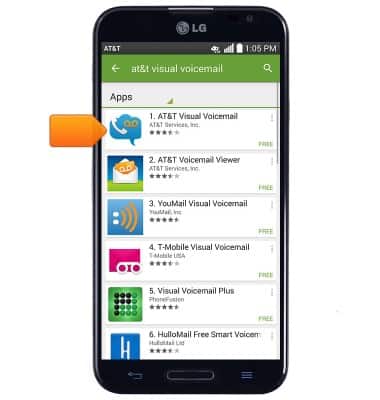
- Enter 'AT&T Visual Voicemail' into the search field, then tap the Search icon.
- Tap AT&T Visual Voicemail.
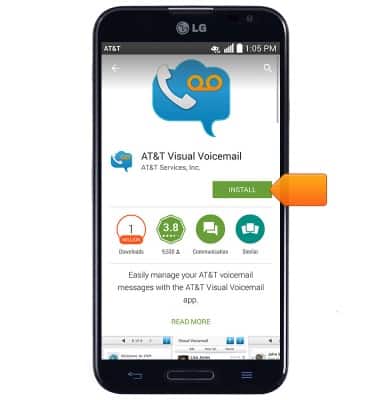
- Tap INSTALL.
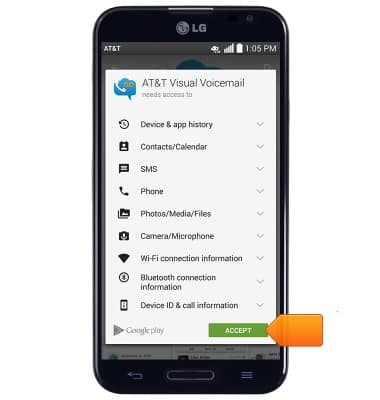
- Tap ACCEPT.
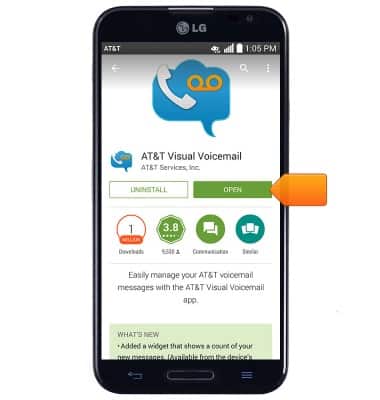
- When download and installation are complete, tap OPEN.
- Tap Call Voicemail.
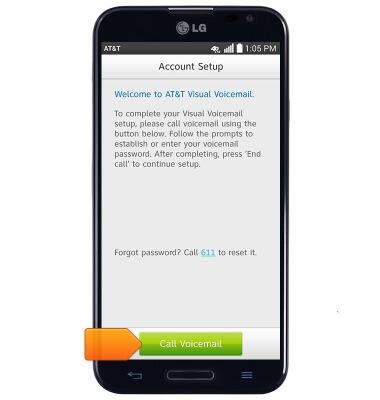
- If prompted, enter the required voicemail password, then tap End.
Note: If you're a new customer and have not established a voicemail box, you'll be prompted to set up your voicemail and choose a password and greeting. If you are an existing customer and you have forgotten your voicemail password, you will not be able to access Voicemail until you reset your voicemail password.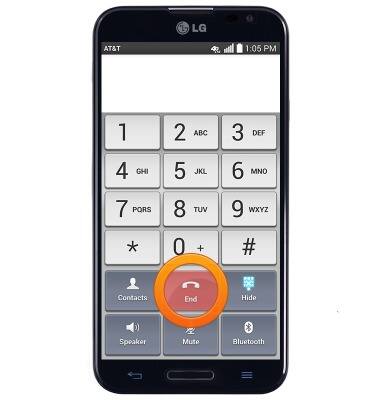
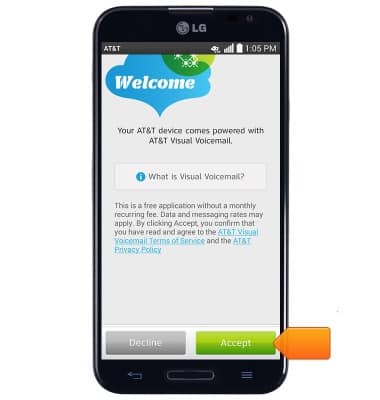
- Tap Accept.
- Enter the required voicemail password.
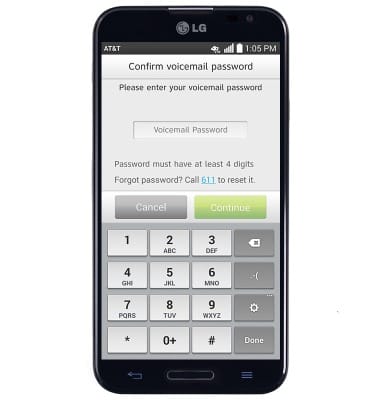
- Tap Continue.
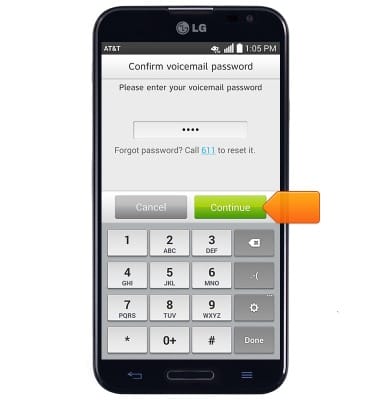
- Tap Finish.
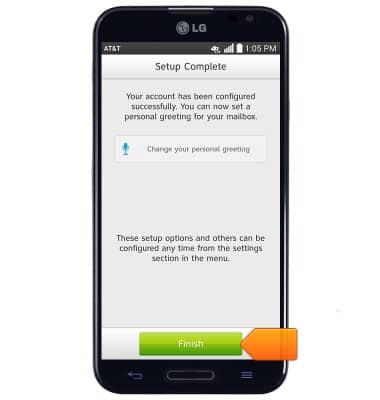
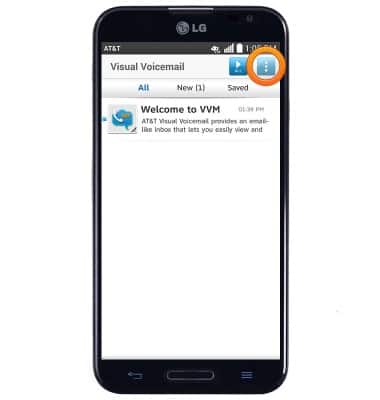
- Visual voicemail setup is complete. To enable voicemail transcription, tap the Menu icon
- Tap Settings.
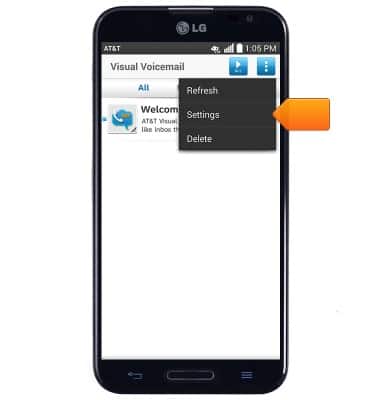
- Tap Voicemail to text to toggle transcription on/off.
Note: View Access Voicemail for tips to manage voicemail. Go to Troubleshoot Voicemail for solutions to common voicemail problems.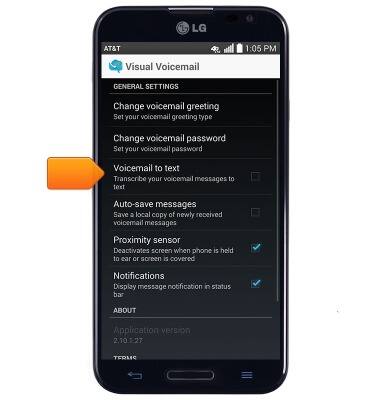
Set Up Voicemail
LG Optimus G Pro (E980)
Set Up Voicemail
Set up voicemail on your device.
INSTRUCTIONS & INFO