
Set Up Home Screen
- ADD AN APP TO THE HOME SCREEN: Swipe up to access the Apps tray, then select and drag the desired app to the desired location on the home screen.
Note: To add a widget (a mini app) to the home screen, select and hold an empty area of the home screen then select Widgets.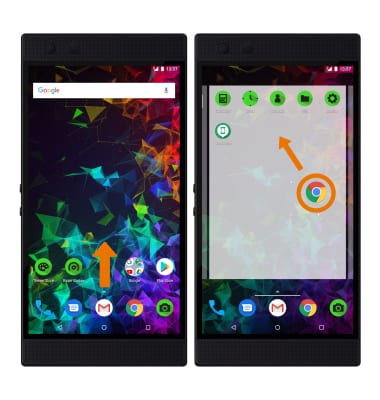
- ADD/REMOVE A FOLDER TO THE HOME SCREEN: Select and drag the desired app over another app, then release. To remove, select and hold the desired folder then select Remove.
Note: Alternatively, select and drag all the apps out of a folder to remove the folder.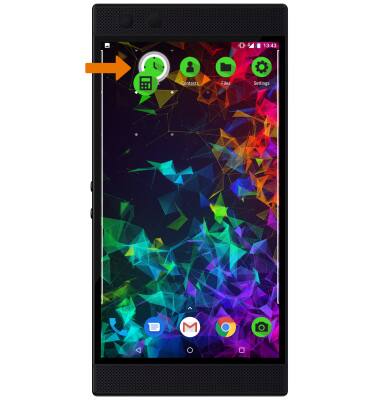
Display Options
Select and hold an empty space on the home screen, then do the following for the desired display option:
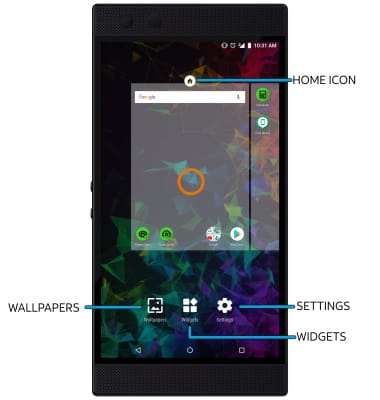
- SET DEFAULT HOME SCREEN PANEL: Swipe to the desired home screen panel, then select the Home icon at the top of the screen.
Note: You can also add, move, or remove home screen panels as desired. You can add a panel by dragging an app to an empty home screen, remove a panel by removing all apps from a home screen, and move a panel by selecting and dragging a panel to the desired location. - CHANGE WALLPAPER: Select Wallpapers then navigate to and select the desired wallpaper.
- CHANGE SCREEN GRID: Select Settings > Desktop > Desktop grid > desired layout > DONE.