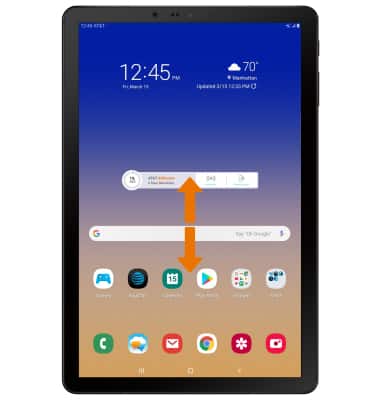
- ACCESS CONTACTS: From the home screen, swipe up or down to access the Apps tray.
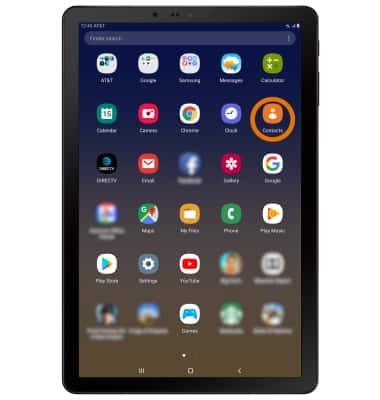
- Select the Contacts app.
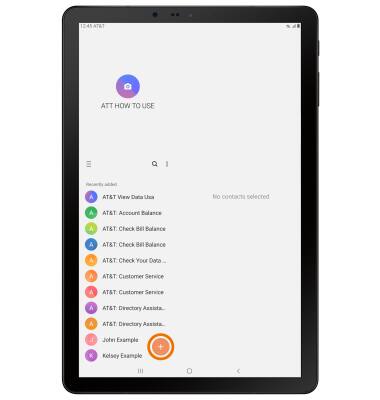
- CREATE A CONTACT: Select the Add icon.
- Select the desired save location to store the new contact then select Select.
Note: Tablet was chosen for this tutorial.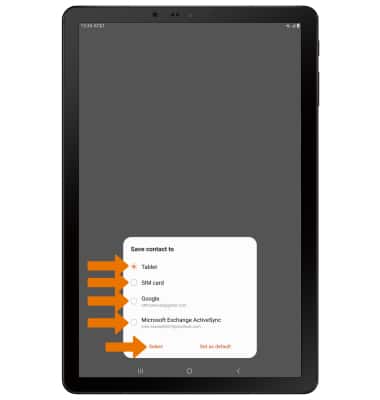
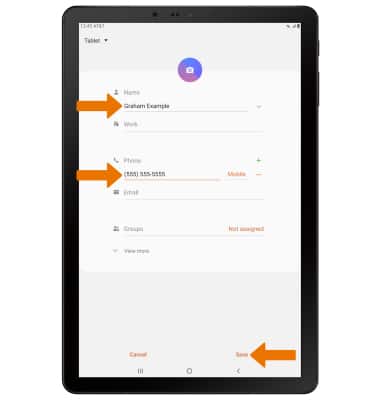
- Enter the desired contact information in the corresponding fields, then select Save.
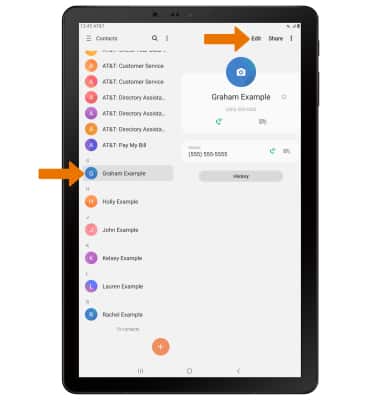
- EDIT A CONTACT: Select the desired contact, then select Edit.
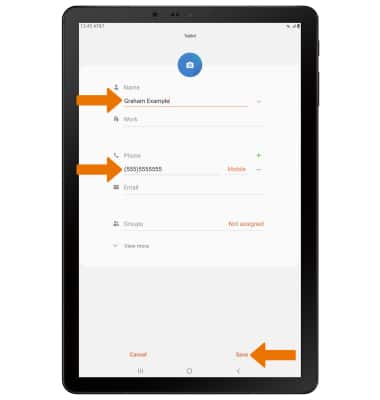
- Enter the desired contact information, then select Save.
- ADD PICTURE TO A CONTACT: From the desired contact, select the Picture icon.
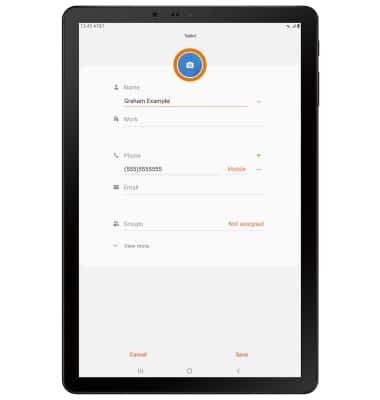
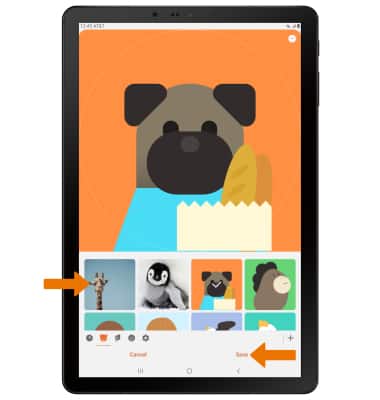
- Navigate to and select the desired image, then select Save.
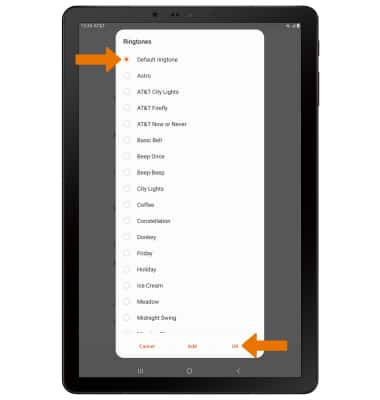
- ADD A RINGTONE: From the Edit contact screen, select View more > Ringtone > desired ringtone > OK.
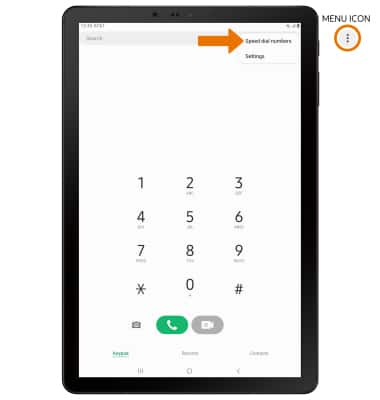
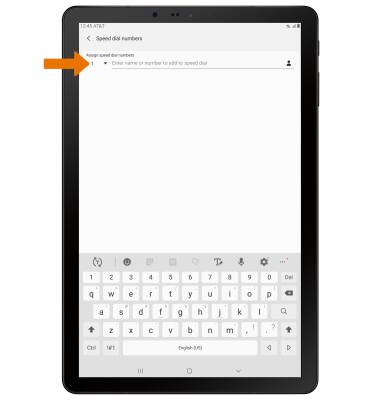
- ADD CONTACT TO SPEED DIAL: From the Dialpad in the Phone app, select the Menu icon then select Speed dial numbers.
- Enter the desired contact name or phone number. Select the desired Speed dial location from the drop-down list.
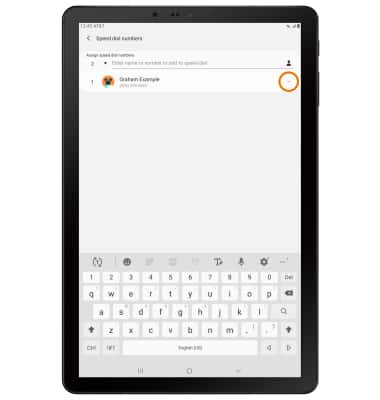
- DELETE CONTACT FROM SPEED DIAL: Select the Remove icon next to the desired contact.
- DELETE A CONTACT: From the Contacts screen, select and hold the desired contact then select Delete.
Note: Select Delete again to confirm.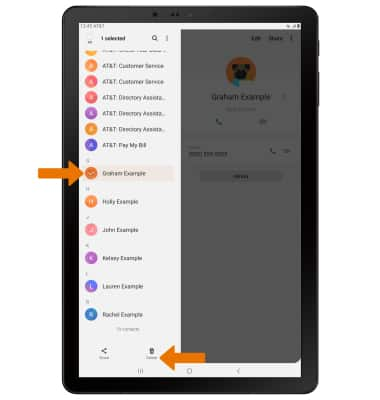
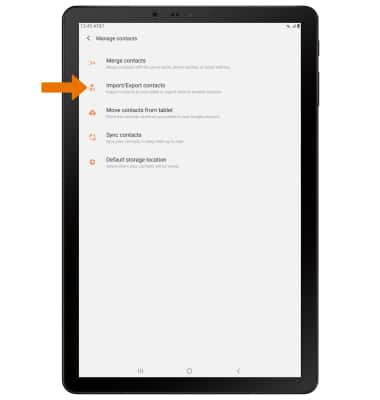
- BACKUP CONTACTS: From the Contacts screen, select the Menu icon then select Manage contacts.
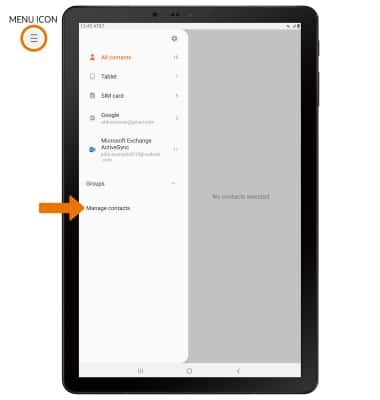
- Select Import/Export contacts then follow the prompts.
Contacts
AT&T Wireless Internet (IFWA40)
Contacts
Add, view, delete, and customize contacts by adding a picture or ringtone.
Contacts
Add, view, delete, and customize contacts by adding a picture or ringtone.

Contacts
1:57
INSTRUCTIONS & INFO