- From the home screen, tap Apps.
Note: When in 'Easy' mode, no 'Groups' tab will display and you can't send business cards, merge accounts, or link contacts.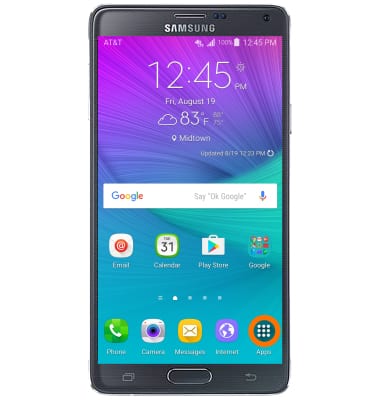
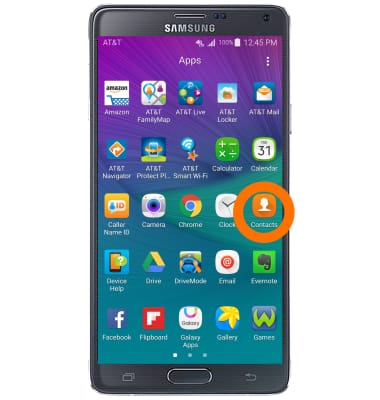
- Scroll to and tap Contacts.
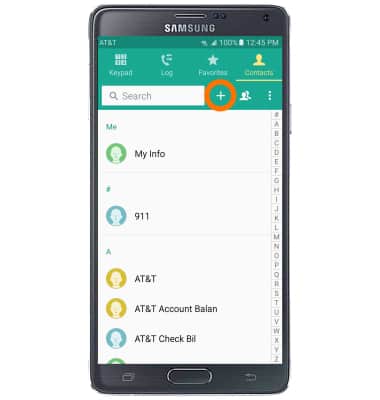
- To create a new contact, tap the Add contact icon.
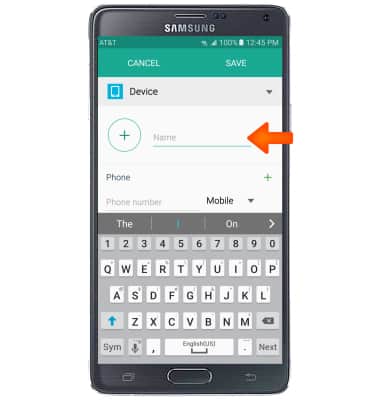
- Enter the contact name in the Name field.
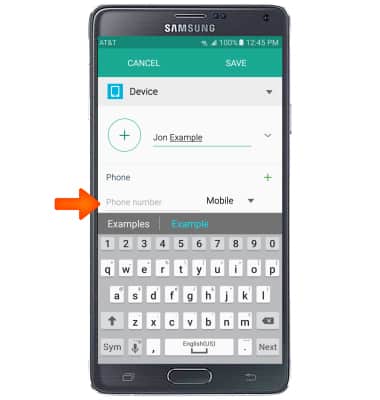
- Tap the Phone number field then enter the desired phone number.
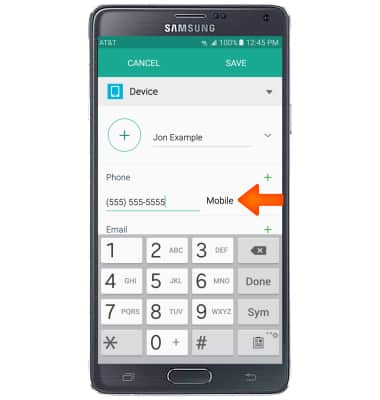
- Tap the Phone type field to change the assigned phone type.
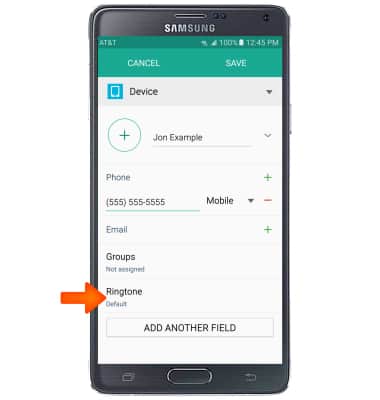
- Tap Ringtone then follow the on-screen prompts.
- To add a contact photo, tap the Add Picture icon then follow the on-screen prompts.
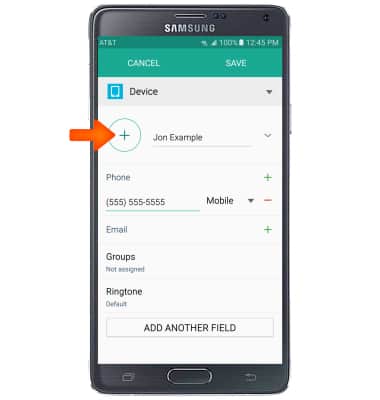
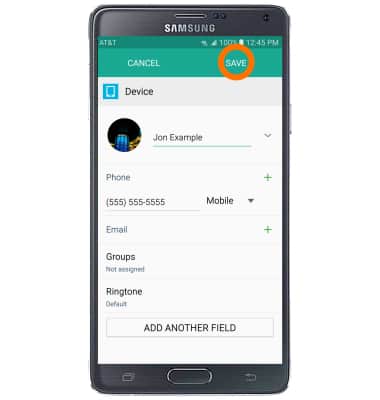
- Edit additional details as desired, then tap SAVE.
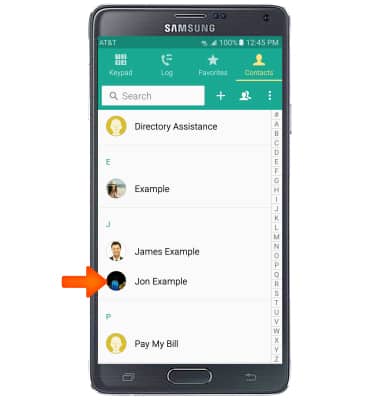
- To edit or delete a contact, from the Contacts page, scroll to then tap the desired contact.
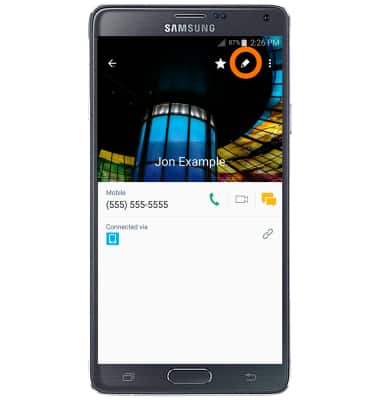
- To edit, tap the Edit icon.
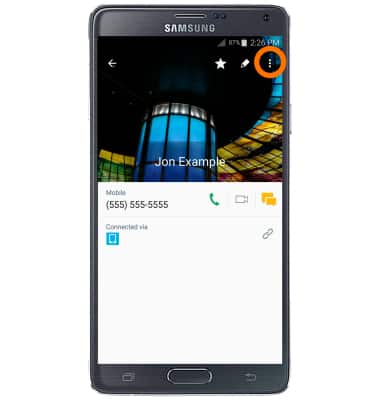
- To delete, tap the Menu icon.
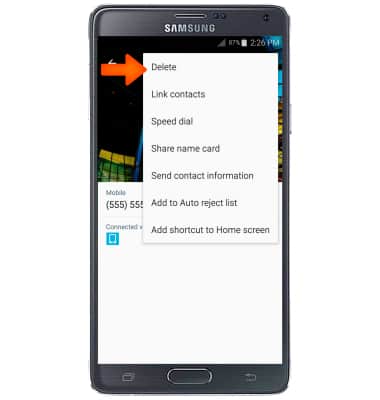
- Tap Delete.
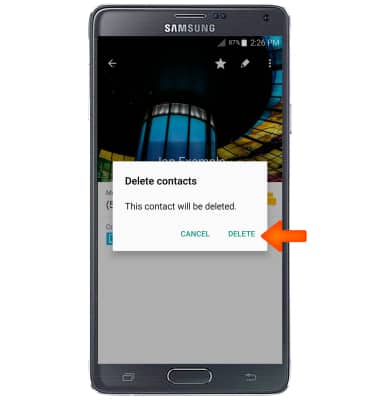
- Tap DELETE.
- To backup contacts using Google, from the home screen, tap Apps > Settings > Accounts > Google > Tap the desired account > Make sure Sync Contacts is checked.
Note: For information backing up contacts using AT&T Address Book, please see the 'AT&T Address Book' tutorial.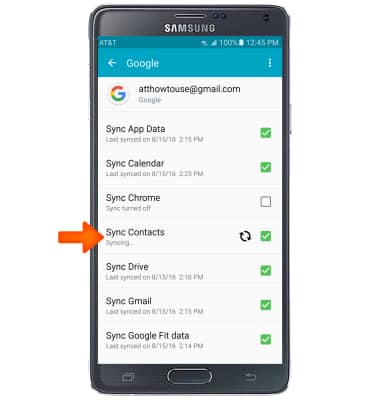
Contacts
Samsung Galaxy Note 4 (N910A)
Contacts
Add, view, delete, and customize contacts by adding a picture or ringtone.
Contacts
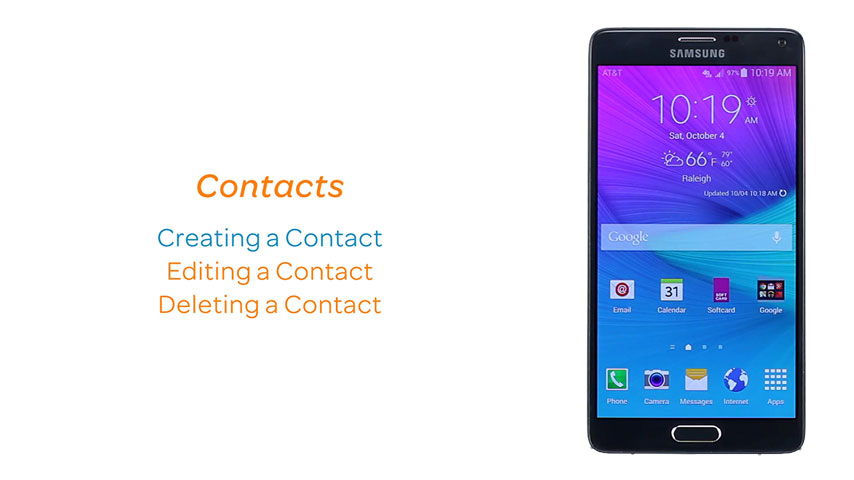
This video explains how to add and edit contacts.
Contacts
1:55
INSTRUCTIONS & INFO