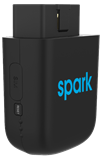
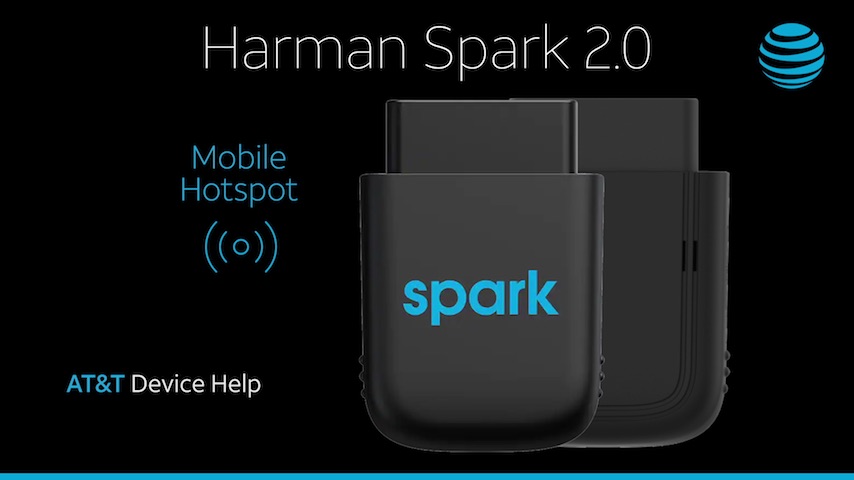

In this tutorial, you'll learn how to:
• Turn Mobile Hotspot on/off
• View Mobile Hotspot network name & password
• Configure hotspot settings
When the Mobile Hotspot is enabled, the Wi-Fi light on the top of the device will blink blue.
Turn Mobile Hotspot on/off
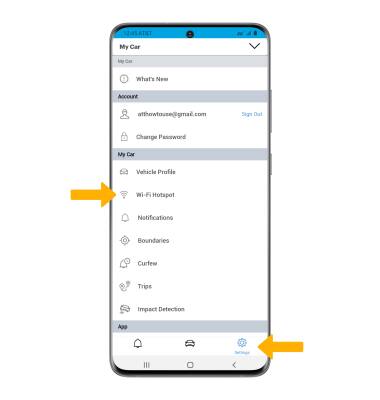
1. From the  HARMAN Spark app, select the Settings tab then select Wi-Fi Hotspot.
Note: Alternately, from the Dashboard tab swipe up from the bottom of the screen then select Hotspot.
3. Select the Wi-Fi Hotspot switch.
Note: You must turn your car on in order to activate the Wi-Fi Hotspot. 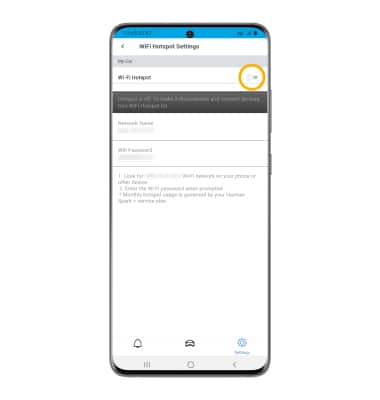
View Mobile Hotspot network name & password
The Mobile Hotspot Network Name and WiFi Password will be displayed on the WiFi Hotspot Settings screen. 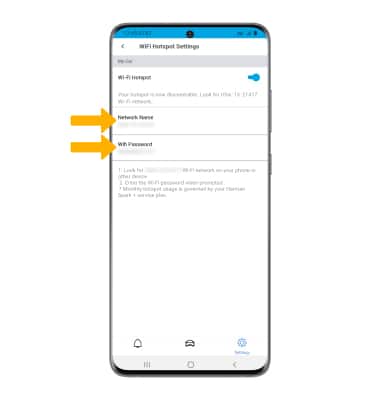
Configure hotspot settings
1. From the WiFi Hotspot Settings screen, select the desired network setting: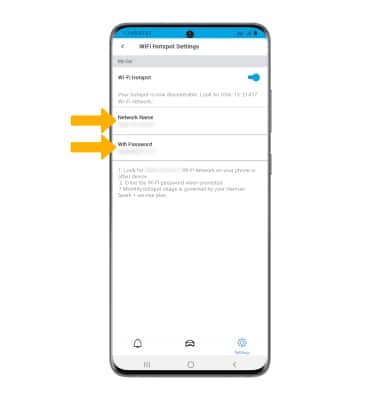
• NETWORK NAME: Change the Name of the Mobile Hotspot network.
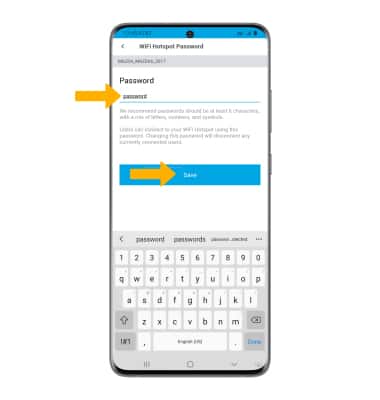
• WIFI PASSWORD: View or change the Password of the Mobile Hotspot network.
2. Edit the information as desired, then select Save when finished.
Note: Wi-Fi Hotspot settings cannot be changed unless the vehicle engine is running.