Deals
iPhone deals
Samsung Galaxy deals
Cyber deals
Business employee
55+
Military
Active first responders
Retired responders
Nurses & physicians
Teachers
Union
Credit card
&More Benefits
Explore wireless
Phone plans
New phones & devices
Upgrade
Bring your own phone
Add a Line
Switch and save
Trade in your device
International phone plans
Shop new iPhones
Shop Certified Pre-Owned
iPhone 17
Samsung Galaxy S25
Why AT&T Wireless
Wireless help
More resources
Explore home internet
Internet plans
Fiber internet
Home Wi-Fi
Check availability
AT&T Internet Air
Moving services
Bundles
Gaming
Home business
Internet help
Speed test
More resources
Access from AT&T
Explore AT&T PREPAID
Prepaid plans
Prepaid phones
Bring your own phone
Prepaid deals
Prepaid account
Activate your service
Lease-to-Own
Home Phone Services
AT&T Phone
AT&T Phone – Advanced
Landline Phone
Lifeline
Phones & accessories
Digital phone help
Landline phone help
Bundles
Internet + Wireless
Internet + Phone
Home office
Smart watches & devices
Smart home
In-car Wi-Fi
All accessories
Headphones
Phone & tablet cases
Chargers
Screen protectors
Speakers & smart home
Internet & TV equipment
PopSockets & more
Gadgets & gaming
Accessory deals
Motorola moto g go (XT2163-7)

Set Up Voicemail

Set up voicemail.

INSTRUCTIONS & INFO

Prenote info

View Access voicemail messages for tips to manage your voicemail. Go to Troubleshoot Voicemail for solutions to common voicemail problems.

In this tutorial, you will learn how to:

• Access Visual Voicemail
• Set up Visual Voicemail
• Enable transcriptions

Alternatively, you can set up voicemail by selecting and holding the 1 key from the Phone app. If prompted, enter your voicemail password, then follow the prompts to set up your voicemail. If you have forgotten your existing voicemail password, you will not be able to access voicemail until you reset your voicemail password.


Access Visual Voicemail

Swipe up from the center of the home screen to access the Apps tray, then scroll to and select the  Visual Voicemail app.


Set up Visual Voicemail

1. Select Next. 

Note: Review the app allowances and select the desired option. 
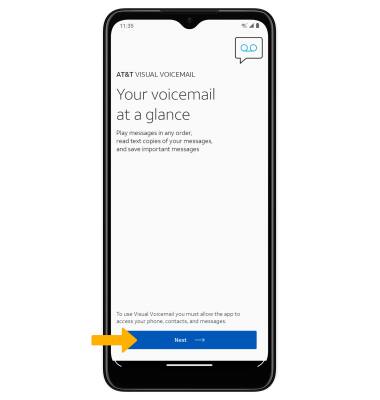
Image 1

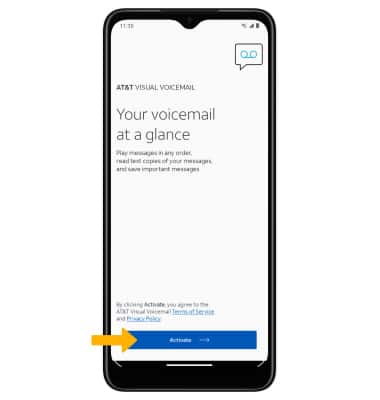
2. Select Activate. 

Image 2

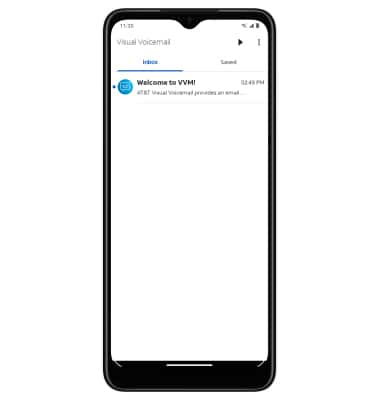
3. Visual Voicemail is now set up.

Image 3


Enable transcriptions

From the Visual Voicemail screen, select the  Menu icon then select Settings. Select the Transcriptions switch. 
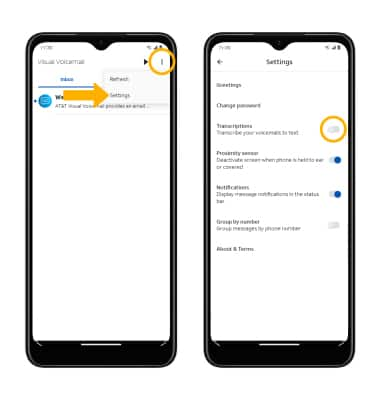
Image 4


Did you get the help you needed?


Did you get the help you needed?