Setting Up an Upgrade with Quick Start and eSIM
Setting Up an Upgrade with Quick Start and eSIM
Place your current iPhone you'd like to use for setup next to your new iPhone.
To use Apple's Quick Start feature, both devices must be operating on iOS 11 or higher.
From your current iPhone, tap Continue on the Set Up New iPhone pop-up.
For the remainder of the Quick Start setup, keep your iPhones near each other.
Position the viewfinder of your current iPhone over the image on your new iPhone to authenticate your connection.
Tap Set Up for Me on your current iPhone.
If a passcode has been setup and enabled on your current iPhone, you will be prompted to enter that passcode on your new iPhone.
Confirm your phone number, then tap Continue.
Enter an applicable zip code, then tap Continue.
If your iPhone was purchased from Apple, you will only have the option to enter your billing zip code.
Your cellular plan will automatically start activating. When complete, tap Continue.
Tap Continue and follow the instructions to set up Face ID on your new iPhone, an important authentication system that increases your device’s security. Once complete, you’ll be able to use Face ID to unlock your iPhone, confirm purchases, and sign into websites (on Safari).
Tap Transfer from iPhone on your new iPhone to have the information from your current iPhone be transferred to your new iPhone.
Tap Download from iCloud if the information you would like to be transferred on to your new iPhone has been previously backed up onto your Apple account's iCloud, or press Other Options for more options.
You will then be asked to agree to Apple’s Terms and Conditions to continue setup.
Enter your Apple ID Password.
Tap Customize to proceed.
Some apps may require your precise or approximate location to function. You can turn location services on and off within the Privacy section of your iPhone’s Settings app, or assign specific permissions for individual apps.
Tap Continue.
Tap either Enable Location Services or Disable Location Services to continue.
If you previously signed into an Apple ID during the iPhone setup process, you’ll be able to tap Continue to set up Apple Pay, which allows you to link your debit or credit cards to your iPhone. You can then use your iPhone to pay for digital and physical items or transfer money to your contacts.
Tap Continue to set up Siri, the digital assistant built into iOS. You may be asked to say a few phrases as part of the setup process.
You’ll then be able to launch Siri by saying, “Hey, Siri!” or by holding down your iPhone’s power button for a few seconds.
Tap Continue to setup Screen time.
Screen Time, which helps you keep track of your iPhone use, set time limits for apps, or limit the apps and contacts you can interact with between set times during the day. If you’re using iOS' Family Sharing features, you can also set limits for your kids' devices.
Tap Continue.
Tap Share with App Developers to allow Apple to send anonymous reports about your app activity and issues you’re having to an app’s developer. Otherwise, tap Don’t Share.
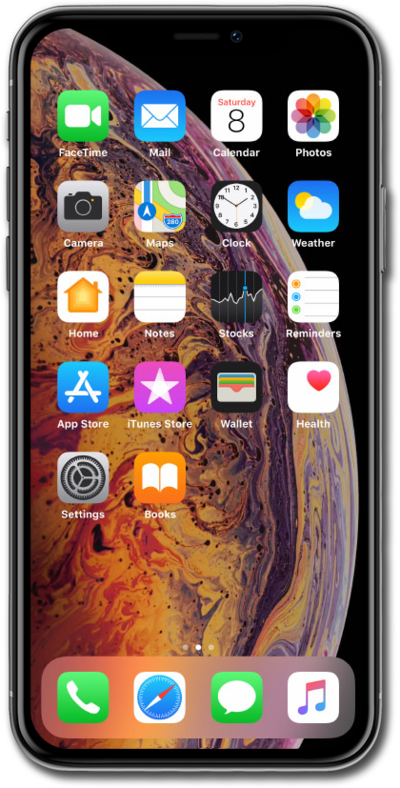
After you complete this step, your current iPhone will show a Transfer Complete screen. Your new iPhone will reset, and then open to the Home screen with all of your current iPhone's information loaded onto it.
You've completed the steps!
