Setting up an eSIM with a push notification after device setup
Galaxy Z Flip4 5G
Setting up an eSIM with a push notification after device setup
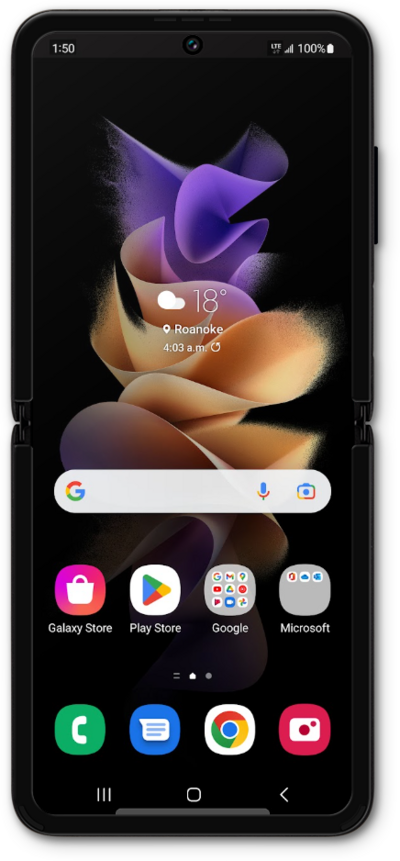
This tutorial walks you through the process of setting up an eSIM on your device using a push notification sent by your carrier. This guide shows you how to accept the notification, download the eSIM profile, and activate your mobile service quickly and securely—without scanning a QR code or manually entering details.
1.
From the Home screen, drag down the left side of your screen to open the Notification panel.
2.
Tap the Carrier eSIM ready to add notification.
3.
Tap Add.
4.
Tap the Carrier eSIM option.
5.
You've completed the steps!
