Managing open apps
Managing open apps
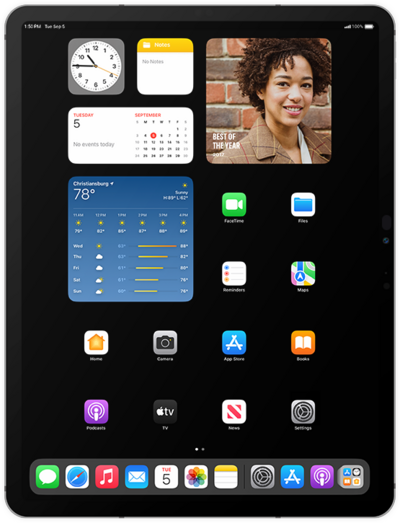
To view your open apps, swipe up from the bottom of the screen and hold.
If you are using a device with a Home button, you can also double tap the Home button.
Select the app you'd like to use.
To change the selected app into an adjustable windowed version, swipe inward from the black handle in the corner of the screen.
You may have to make sure Windowed Apps are enabled in order to use this feature. This option can be found within the Multitasking & Gestures category within the Settings app.
To adjust the size of the window, press and hold any edge or corner of the window, other than the top edge, and drag it to your preferred size.
It is possible to do this with multiple apps, thereby creating multiple windows that can be used for multitasking.
To move the window, press and hold the top edge, then drag it to your preferred location.
Tap the Three dots icon in the top left of the window to open the window menu.
Tap the Expand icon to open the window back to full screen.
To close an open app, swipe up from the bottom of your screen and hold.
If you are using a device with a Home button, you can double tap the Home button instead.
Swipe up on an app to close it.
Regularly closing apps can make your device faster and your battery last longer.
Tap an empty space on your screen to return to the main Home screen.
If you are using a device with a Home button, you can double tap the Home button instead.
You've completed the steps!
