Setting up an upgrade or port-in manually with eSIM
Setting up an upgrade or port-in manually with eSIM
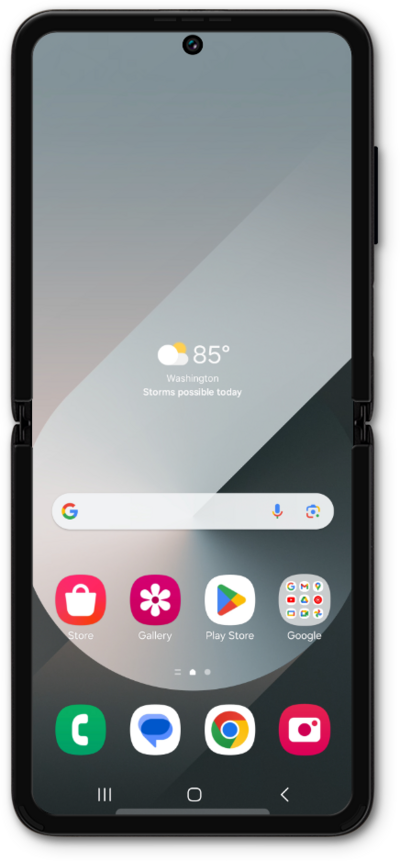
Tap Start.
Here you can change your locale, accessibility settings, and make an emergency call.
Tap Agree.
Tap Set up manually.
Select your Wi-Fi network, enter its password, and tap Connect.
Tap Next.
Tap Activate through AT&T to start activating your eSIM.
Enter the AT&T wireless billing or shipping Zip Code, then tap Next to proceed.
Your eSIM will now start downloading once you see this screen.
To set up your phone as a brand-new device, tap Don't copy.
You can also transfer apps and data from your previous phone.
Enter your Google account information and tap Next.
Follow the on-screen prompts to accept any Google services.
Enter and confirm your PIN number, then tap OK.
On this screen, you can choose various security features to lock your phone with.
Tap Accept.
Tap Don't back up.
For this tutorial, we're skipping Google backup setup, but we recommend backing up your data.
Tap Next.
Tap No thanks.
On this screen, you can choose to enable the "Hey Google" feature to work with Gemini on your phone.
Tap Sign in with Google.
Follow the on-screen prompts to accept any Samsung services.
Tap Next.
Tap Home.
You've completed the steps!
