Samsung Galaxy Z Flip6 Device Help & How-To Guides
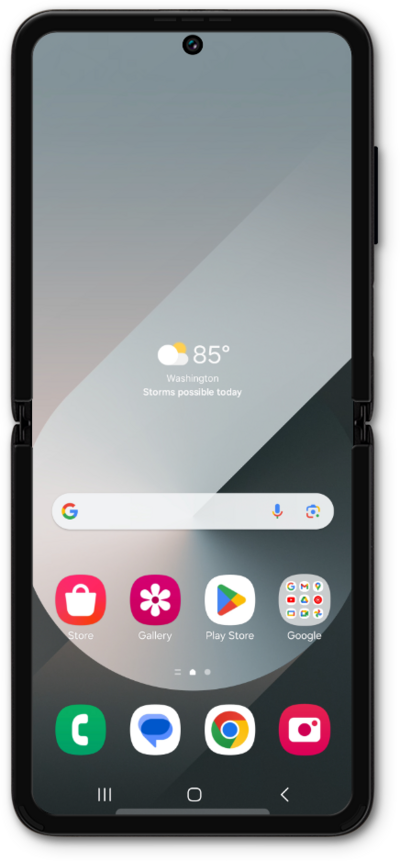
What would you like to learn about your device?
Trending Galaxy Z Flip6 topics
Resetting network settings
If you are having trouble connecting to the Internet you may need to reset your network connections. Resetting your network connections will disconnect any Bluetooth devices connected to your device and disconnect your device from any Wi-Fi networks it is connected to.
ExploreUsing Samsung Find to locate missing phones and accessories
Follow along to use your device's tracking feature to locate, lock, or erase a missing device.
ExploreCalling your voicemail inbox
Follow along to learn how to easily call your voicemail inbox and listen to your messages.
ExploreChanging Roaming Settings for a Trip
When traveling internationally, you may want to turn data roaming on and off to conserve data and minimize unwanted fees.
Explore