Mobile Hotspot Wi-Fi Not Found
Mobile Hotspot Wi-Fi Not Found
-
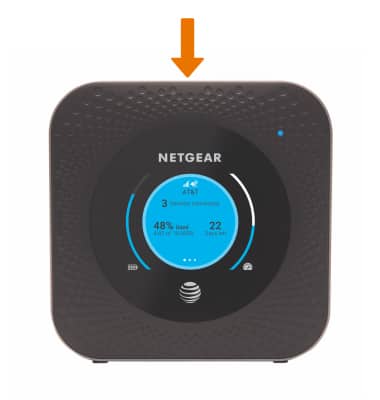
The Wi-Fi network will stop broadcasting after 15 minutes of inactivity. Press the Power button to start broadcasting again.
-
CHECK BLOCKED DEVICES: From your device's web browser go to http://attwifimanager. Enter your Username and Password, then click SIGN IN.
Note: Ensure that your device is connected to the Netgear Nighthawk's Wi-Fi network. For more information, please see the Connect Devices to Wi-Fi or Connect PC or Mac to Wi-Fi tutorials.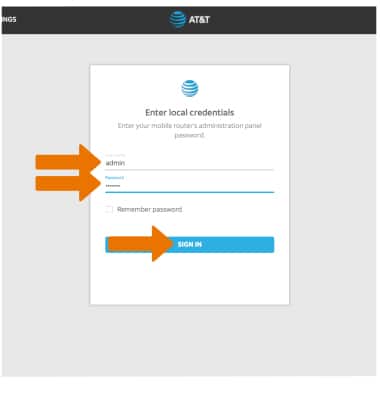
-
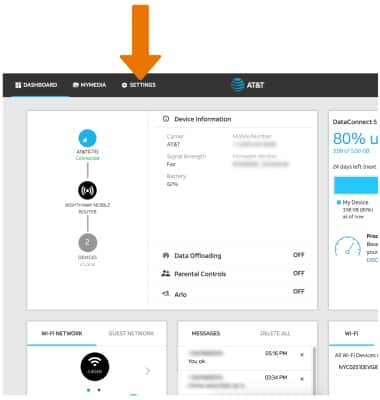
Click SETTINGS at the top of the page.
-
Click Security, then click Access Controls. Blocked devices will be displayed.
Note: Ensure Blacklist is selected in the Filter Type drop-down menu.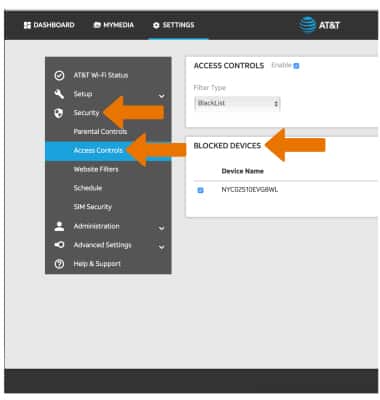
-
To unblock a device, click the checkbox next to the desired device then click DELETE.
Note: Select Apply when finished. If you are still having trouble with limited or no connectivity issues, try power cycling the device.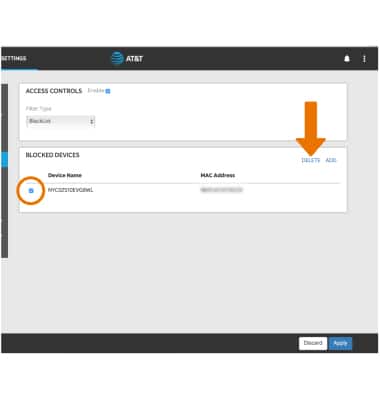
-
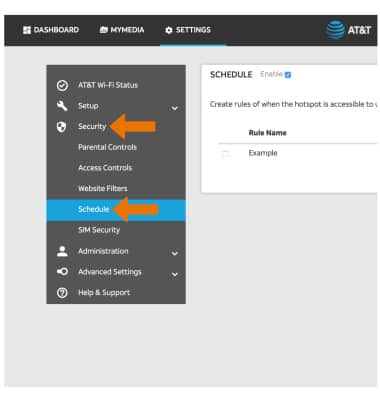
From the SETTINGS screen, click Security then click Schedule.
-
If a schedule has been enabled, it will be displayed under Rule Name and the Enable checkbox will be selected. Click the Enable checkbox to disable the schedule.
Note: To delete a schedule, click the checkbox beside the desired rule then click DELETE.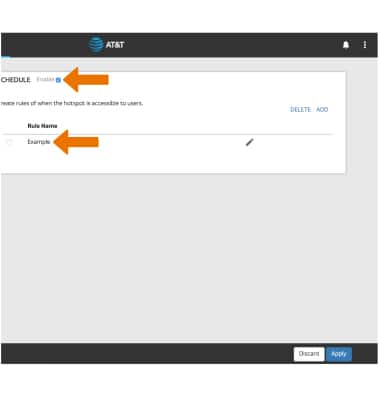
-
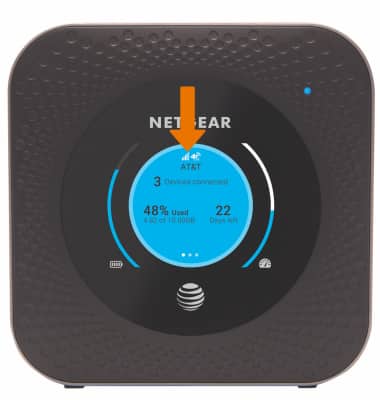
CHECK NETWORK STATUS: The signal strength will be displayed on the first home screen of the device.
-
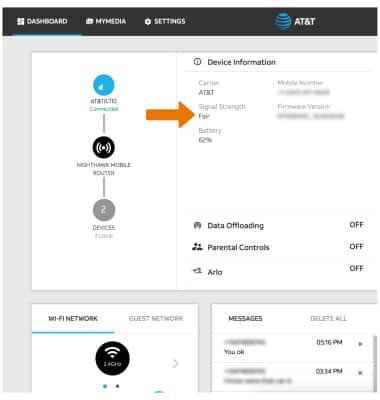
The signal strength is also displayed on the AT&T Wi-Fi Manager website. From the DASHBOARD screen, Signal Strength will be displayed under Device Information.