Advanced Photo & Video Features
Advanced Photo & Video Features
In this tutorial, you will learn how to:
• Access camera modes
• Customize photo and video settings
• Crop a photo
• Access camera filters
• Add a watermark
Access camera modes
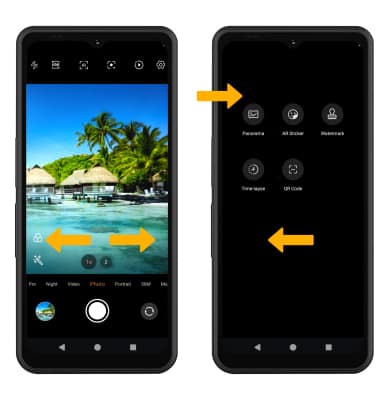
From theCamera app, swipe left or right to access PORTRAIT or PRO. Swipe left to MORE to access modes such as PANORAMA, and TIMELAPSE.
Note: PORTRAIT allows you to highlight the subject of a photo by blurring the background. PROallows you to take photos in manual mode.PANORAMA allows you to create wider photos by stitching together multiple photos. TIMELAPSEallows you to create time-lapse videos. Not all of these options are available when using the front facing camera.
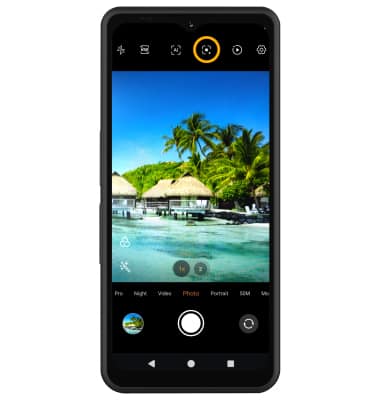
To access Google Lens, select the Google Lens icon then follow the prompts to use.
Customize photo and video settings
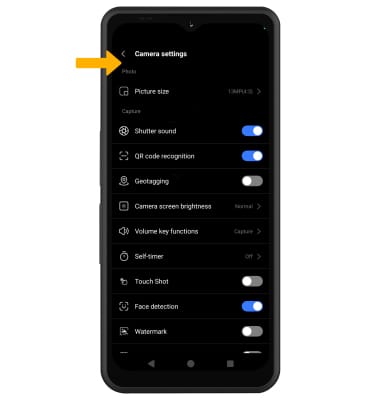
From the Camera app, select the

Settings icon. Adjust settings as desired.
Crop a photo
1. From the Camera app, select the Gallery icon. Swipe left to the desired photo, then select Edit.
Note: Alternately, from the home screen, select the  Photos appthen navigate to and select the desired photo.
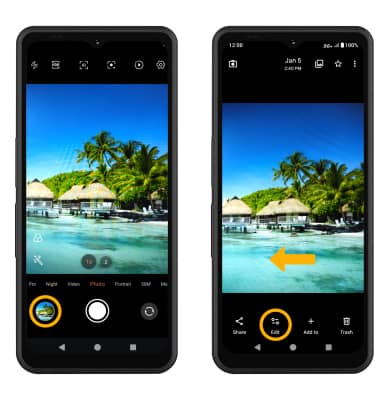
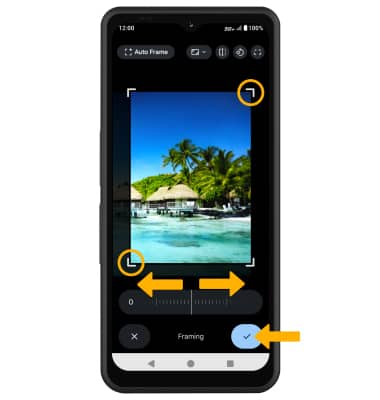
2. Select Crop. Select and drag the crop corners to crop as desired, then select the Checkmark icon.
Access camera filters
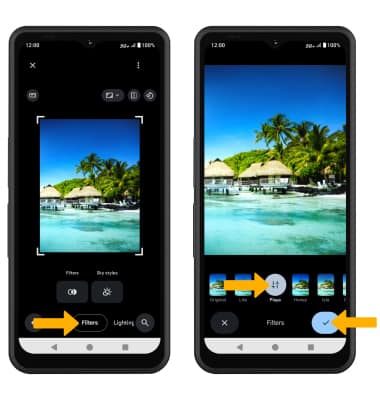
1. From the Edit screen, select Tools then swipe left to and select Filters.
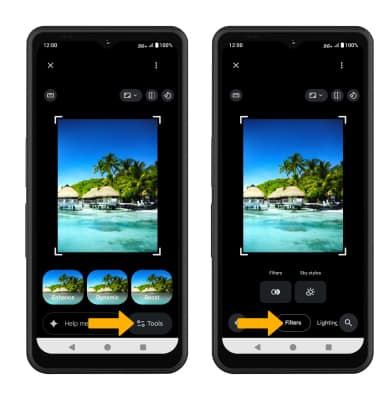
2. Select Filters. Select the desired filter, then select the Checkmark icon.
Add a watermark
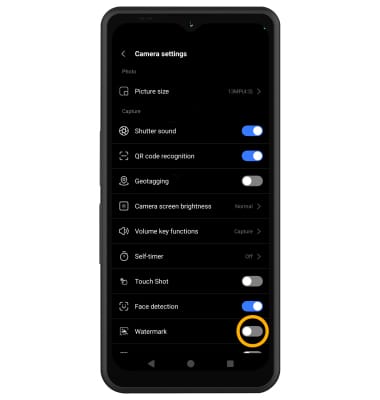
From Camera settings screen, select the Watermark switch.