Bluetooth
Bluetooth
In this tutorial, you will learn how to:
• Quickly turn Bluetooth on or off
• Enable or disable Bluetooth from settings
• Pair with device
• Unpair with device
When Bluetooth is on, the  Bluetooth icon will display in the Notification bar. To optimize battery life, turn Bluetooth off when not in use.
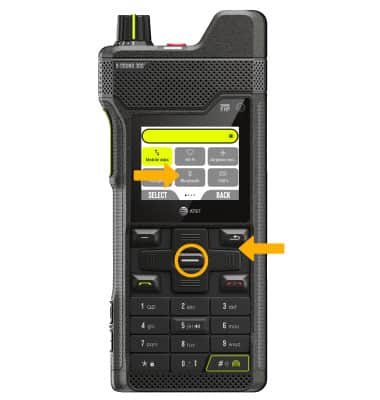
Quickly turn Bluetooth on or off
From the home screen, press the top navigation key to access Quick Settings. Press the navigation keys to highlight Bluetooth, then press the Select button to turn on or off as desired.
Enable or disable Bluetooth from settings
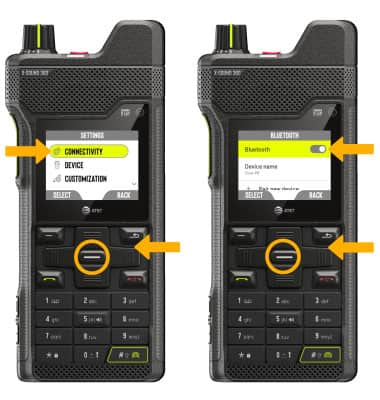
- From the home screen, press the right navigation key to highlight the
 Settings app, then press the Select button to select.
 - Press the down navigation key to highlight Connected devices and press the Select button. From the Connected devices screen, press the navigation keys and Select button to navigate to Connected preferences > Bluetooth > Use Bluetooth switch. Press the Select button to turn on or off as desired.
Pair with device
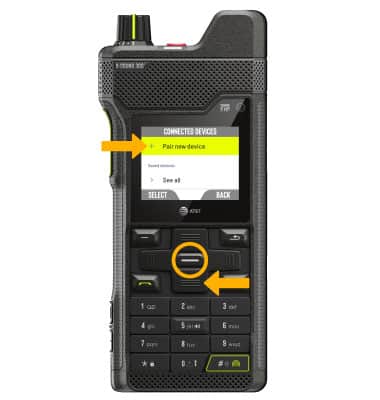
1. From the Connected devices screen, press the down navigation key to highlight Pair new device then press the Select button to select.
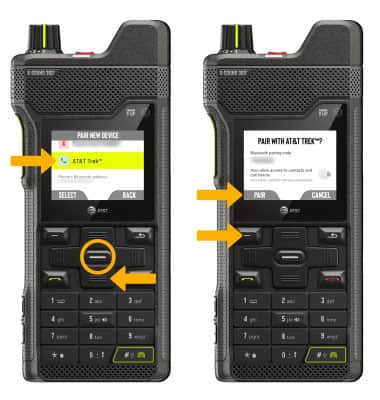
2. Your device will automatically scan for devices. Press the down navigation key to highlight the desired device, then press the Select button to select. Press the Left Dynamic key to select Pair when prompted to request a pairing.
Note: You may be prompted to enter a passcode (common default passcode is 0000).
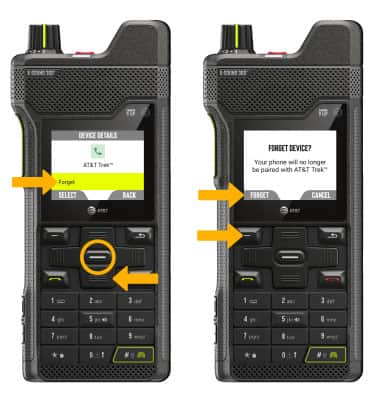
Unpair a device
1. From the Connected devices screen, press the down navigation key to highlight the desired device under Saved devices. Press the Select button to select.
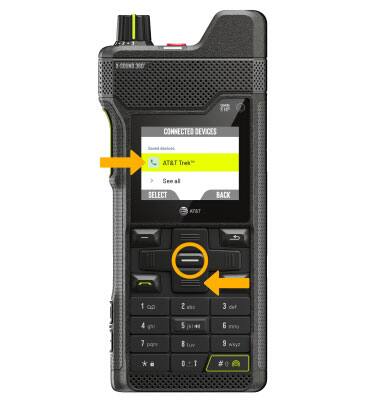
2. Press the down navigation key to highlight Forget, then press the Select button to select. Press the Left Dynamic key to select Forget and confirm.
Note: If having trouble pairing/unpairing your device with your vehicle, please refer to your vehicle's user manual for additional information.