Wi-Fi
Wi-Fi
Access the Mobile Hotspot tutorial for information on connecting via a hotspot or tethering.
In this tutorial, you will learn how to:
• Access Wi-Fi
• Connect to a Wi-Fi network
• Access Wi-Fi options
• Connect to a hidden network
• Quickly turn Wi-Fi on or off
When connected to a Wi-Fi network, the

Wi-Fi connected icon will be displayed in the Notification bar.
Note: Data transmitted over a Wi-Fi network does not count toward your AT&T data plan, and will not be billed. When using the AT&T network, data rates apply.
Access Wi-Fi
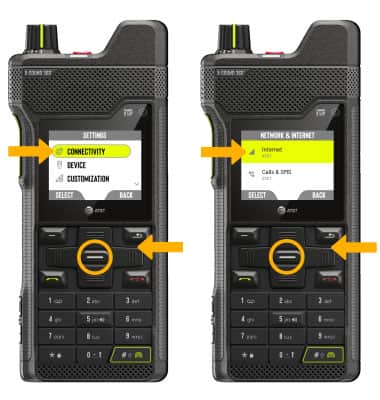
- From the home screen, press the right navigation key to highlight the
 Settings app and press the Select button.
 - Press the navigation keys to navigate to then press the S****elect button for Connectivity > Network & internet > Internet.
Connect to a Wi-Fi network
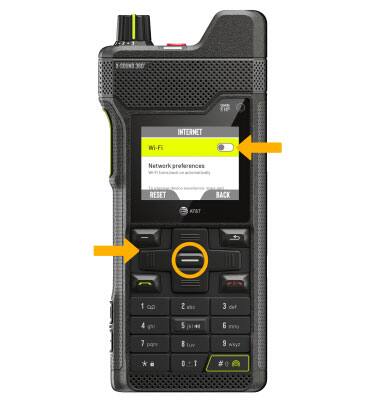
1. From the Internet screen, press the navigation keys to highlight the Wi-Fi switch then press the Select button.
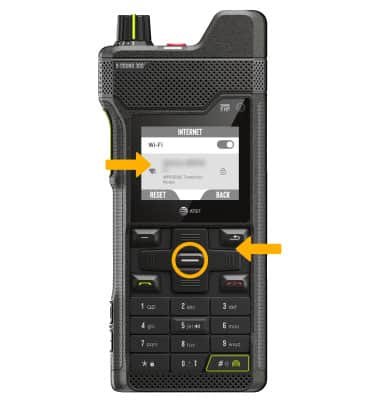
2. When the Wi-Fi is turned on, a list of available networks will be displayed. Press the navigation keys to highlight the the desired Wi-Fi network, then press the Select button to select and establish a connection.
Note: If connecting to a secure network, use the keypad to enter the Wi-Fi password. Press the Left Dynamic key to select Select. Secure networks will display with a Lock icon.
Access Wi-Fi options
REFRESH NETWORK LIST: The Wi-Fi network list will automatically refresh on the Wi-Fi screen.
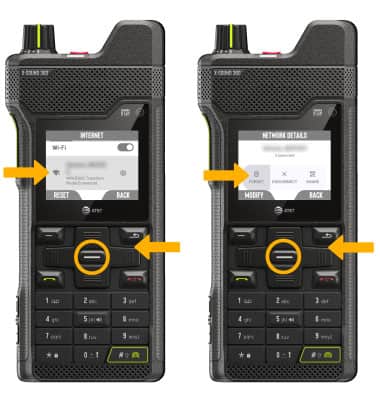
FORGET NETWORK: Press the navigation keys to highlight the desired network, then press the Select button. Press the down navigation key to highlight then select Forget.
Connect to a hidden network
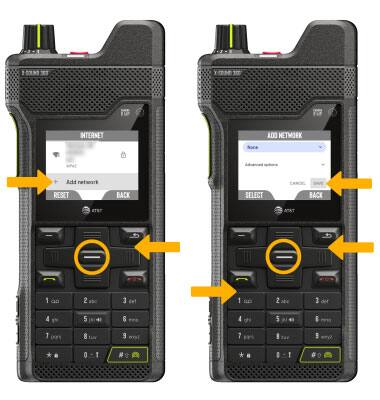
From the Wi-Fi screen, press the navigation keys to highlight Add network, then press the Select button. Use the navigation keys and keypad to enter the network information, then press the down navigation key to highlight then select Save.
Note: When connecting to a hidden network, you will be prompted to enter the network SSID, security type, and password (if necessary) to continue.
Quickly turn Wi-Fi on or off
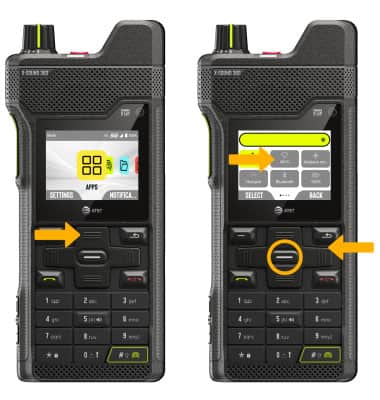
From the home screen, press the top navigation key to access Quick Settings. Press the navigation keys to highlight Wi-Fi, then press the Select button to turn on or off as desired.
Note: Secure networks will display with a Lock icon. If connecting to a secure network, enter the Wi-Fi password then select CONNECT.
Tips
OPTIMIZE BATTERY LIFE: Turn Wi-Fi off when not in use. Access the Optimize Battery Life tutorial for more information.