Wi-Fi Not Found
Wi-Fi Not Found
In this tutorial, you will learn how to:
• Check network status
• Check blocked devices
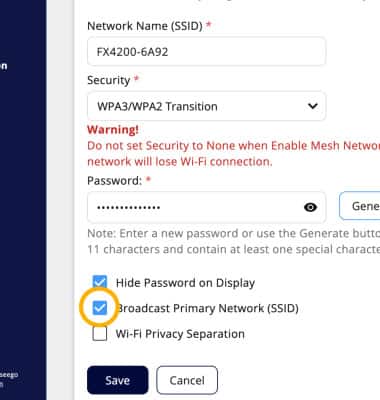
• Check Broadcast SSID status
Check network status
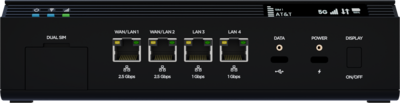
If your Inseego Wavemaker FX4200 Wi-Fi network is not found, ensure that the Wi-Fi LED connection status is displaying a green LED light. A red LED light indicates an error with the Wi-Fi. When the device is not receiving a cellular signal, the Signal bars LED lights will flash red.
Check blocked devices
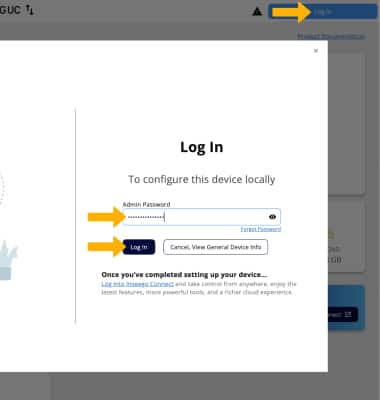
1. From your device’s web browser, go to http://Inseego.local or https://192.168.1.1. Click Log In in the upper right corner of the screen. Enter your password, then click Log In.
Note: Ensure that your device is connected to the Inseego Wavemaker FX4200 Wi-Fi network. For more information, please see the Connect Devices to Wi-Fi or Connect PC or Mac to Wi-Fi tutorials.
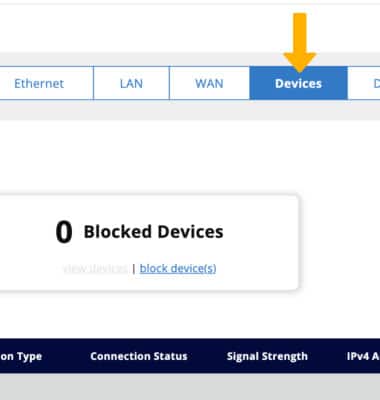
2. Click Network, then click the Devices tab.
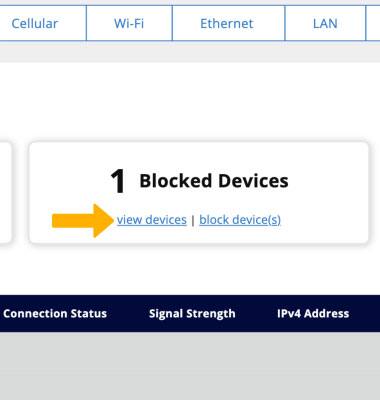
3. Click view devices under Blocked Devices.
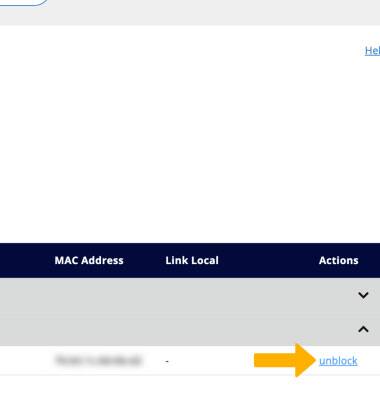
4. Click unblock next to the desired device.
Check Broadcast SSID status
1. From the Web Admin’s dashboard, click the Network then click the Wi-Fi tab.
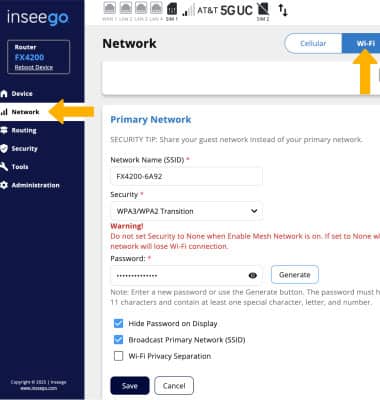
2. Scroll down to Primary Network. Make sure the Broadcast Primary network (SSID) checkbox is selected.