Activation and setup of your phone manually as a new device
Activation and setup of your phone manually as a new device
Tap the arrow icon.
You can also tap the Accessibility option to change your accessibility settings.
Select your preferred language.
Tap Skip.
You can also set up your new device by transferring an eSIM and data from a different device to your new one by selecting either Pixel or Android device or iPhone or iPad, depending on which type of device you wish to transfer from.
Select your Wi-Fi network, enter its password, and tap Connect.
You can also choose to set up your phone offline.
Tap Next.
If you are not using an eSIM, then the eSIM and phone activation steps may not appear.
Tap Continue.
Select who you will be setting up the device for.
Enter your Google account information and tap Next.
Follow the on-screen prompts to accept any Google services.
Enter and confirm your PIN number, then tap Confirm.
Tap No thanks.
For this tutorial, we're skipping fingerprint setup, but we recommend using this or Face Unlock to increase the security of your device.
Tap No thanks.
On this screen, you can choose to set up Face Unlock.
Tap Do it later.
You can also transfer apps and data from your previous phone.
Tap Accept.
Tap Don't back up.
For this tutorial, we're skipping Google backup setup, but we recommend backing up your data.
Tap I accept.
Tap No thanks.
Tap No thanks again.
Tap Next.
Tap I agree.
Tap Next.
Tap Next.
Tap Maybe later.
From this screen, you can set up another email account, get instant translations, and more.
Tap Skip.
From this screen, you can learn how to use your device using swipe gestures.
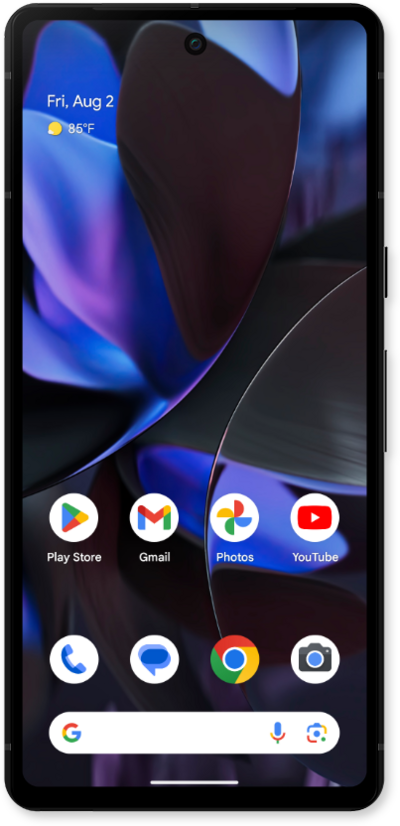
You've completed the steps!
