Manage your child's screen time schedule and time allowances
Manage your child's screen time schedule and time allowances
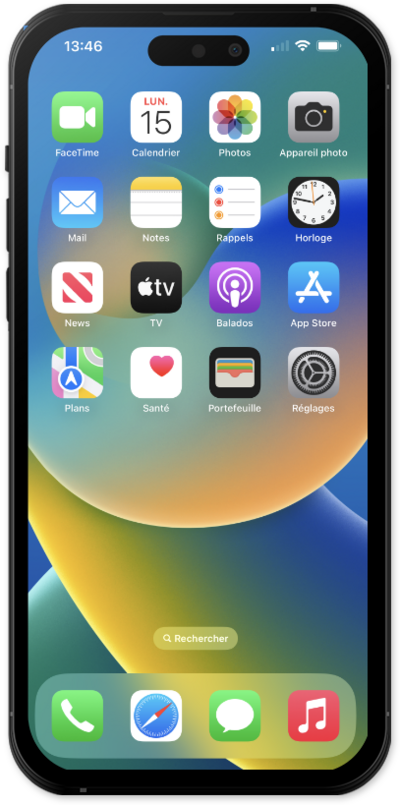
From the Settings app, scroll to and tap Screen Time.
Scroll to Family, then select your child.
Your child must be part of your Apple Family to manage their Screen Time settings from your device.
From this screen, you can use the controls at the top to quickly take action — pause their device, allow unlimited use, or change their schedule with just a tap.
To check your child's Screen Time activity at a glance, tap the usage graph.
Here you can see their screen time by day or week, along with their most-used apps and websites — giving you a quick, at-a-glance view of how they're spending time on their device.
Tap back, then scroll to and tap Screen Time Schedule.
Screen Time Schedule lets you control which Time Allowance categories are available at different times of the day. Always Allowed apps and contacts remain accessible.
Review the weekday and weekend schedules. Tap a time window to make changes, or tap Add Time Window to create a new one.
Tap back, then tap Time Allowances.
Time Allowances let you manage how long your child can use categories of apps and websites, such as Entertainment, Games, and Social Media.
Adjust the Shared Time Allowance, or use the controls next to a category to adjust its available time.
Tap Manage Categories to choose which categories are included in your child's Time Allowances.
Tap back, then scroll to and tap Manage Screen Time.
From here, you can customize Screen Time notifications, change your child's Screen Time passcode, or stop managing Screen Time features.
You've completed the steps!
