Setting up parental controls for the first time
Setting up parental controls for the first time
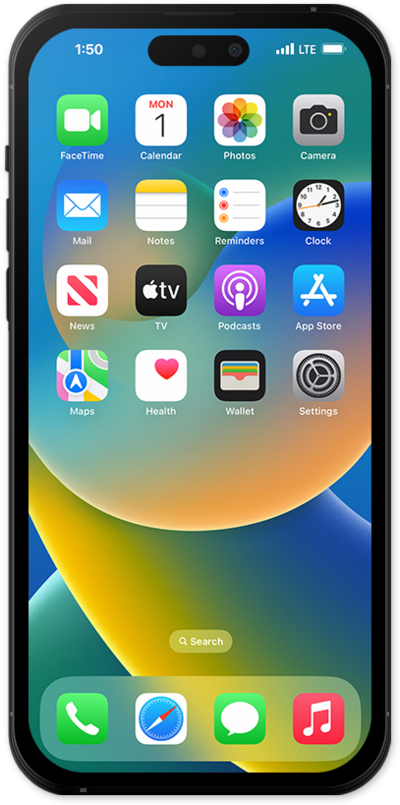
From the Settings app, tap Family.
Select the child you'd like to set up parental controls for.
Tap Screen Time.
Tap Get Started to begin setting up parental controls.
Review and adjust what your child can explore, then tap Continue.
You can manage allowed websites, age-appropriate content, and other restrictions for your child.
Review and adjust who your child can communicate with, then tap Continue.
Set when your child can access apps and websites, then tap Continue.
Set how much time your child can spend on entertainment, games, and social media apps, then tap Continue.
You can adjust individual categories or leave other apps unrestricted.
Choose whether to pause entertainment, games, and social media apps during school hours, then tap Continue.
Create a Parental Passcode.
This passcode is required to change parental controls or child safety features. Choose a passcode your child won't be able to guess.
You've completed the steps!
