Manage your notifications
Watch Series 9
Manage your notifications
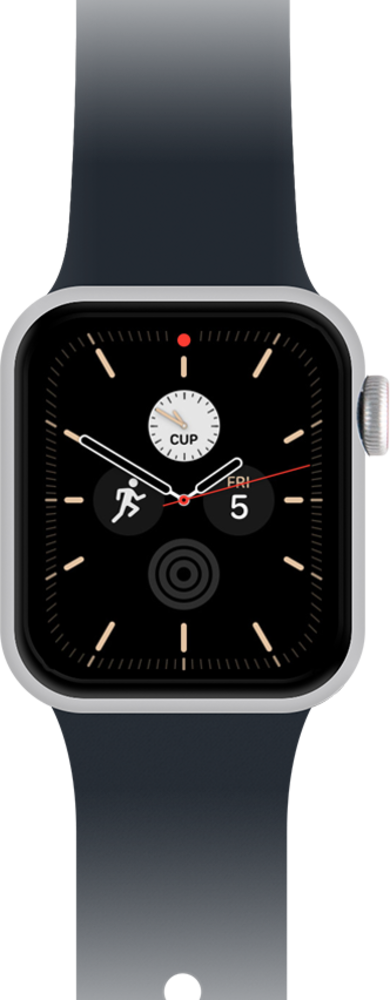
Change your notification preferences to better fit your personal preferences.
1.
From the Watch app on your iPhone, tap Notifications.
2.
Adjust the following notification options to your preference:
- Notifications Indicator: Shows a red dot at the top of your watch face when you have unread notifications. Swipe down to view them.
- Show Summary When Locked: Shows a short look (app icon, name, and brief headline) when Apple Watch is locked.
- Tap to Show Full Notification: Hides the full notification details behind a summary until you tap the screen or double-tap your fingers.
- Show Notifications on Wrist Down: Lets Apple Watch show notifications even when your wrist is down.
- Per-app notification list: Tap any app in this list to customize how its notifications behave on your watch — options typically include mirroring your iPhone's settings, allowing notifications, sending them silently to Notification Center, or turning them off entirely for that app.
3.
You've completed the steps!
