Adding apps and widgets to the Home screen
Galaxy Z Flip 5G
Adding apps and widgets to the Home screen
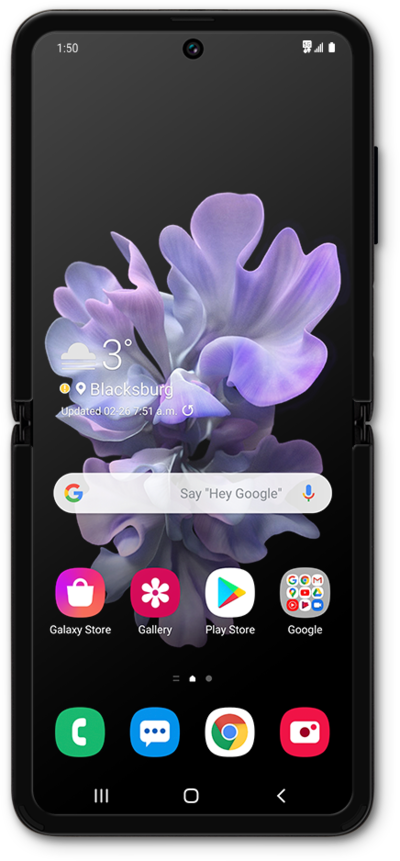
Widgets allow you to do things such as preview upcoming events, see recent emails, and get quick access to your favorite contacts. Widgets are also known as modules and help you keep important information at the tips of your fingers.
1.
From the Home screen, touch and hold an empty space.
2.
Tap Widgets.
For this tutorial, we're adding a widget to the Home screen. You can also add an app by touching and holding an app in the Apps menu.
3.
Select a widget category.
Swipe to view more available widgets.
4.
Swipe from left to right to select a calendar size.
5.
Tap Add to add the widget to the Home screen.
6.
You've completed the steps!
