Adding and deleting Home screens
Galaxy Z Flip 5G
Adding and deleting Home screens
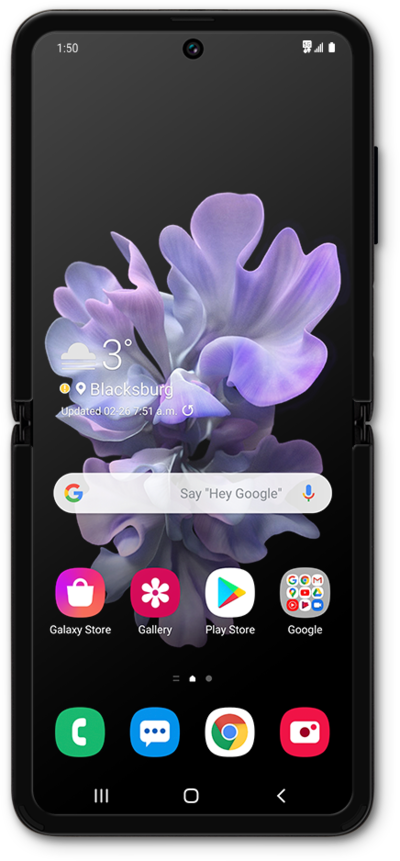
Learn how to create or remove homescreens to further personalize your device. New home screens can be used for widgets or apps. Change the home screen to best suit your needs.
1.
From the Home screen, place two fingers on the screen and pinch in.
2.
Swipe to the Plus sign panel.
3.
Tap the Plus sign panel.
4.
Tap the Home icon to view your new Home screen.
5.
To remove a Home screen, place two fingers on the screen and pinch in.
6.
Tap the Delete icon.
7.
Tap the Home icon to save your changes.
8.
You've completed the steps!
