Using Spoken Content to read selected text or what's on your device's entire screen
iPad (7th generation)
Using Spoken Content to read selected text or what's on your device's entire screen
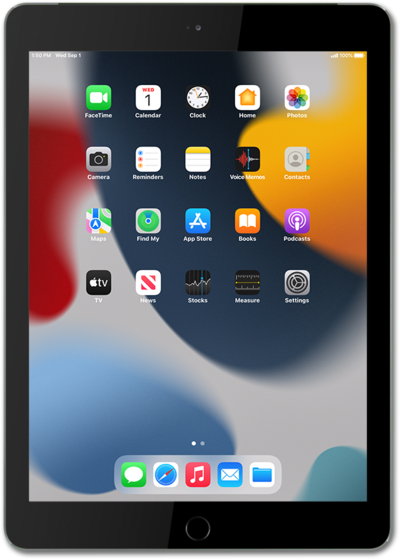
Your device can say what's appearing on the screen out loud, and read selected text or suggested words while you're typing.
1.
From within the Settings app, scroll to and tap Accessibility.
2.
Tap Spoken Content.
3.
Tap or slide the Speak Selection switch to ON.
4.
Tap or slide the Speak Screen switch to ON.
The following steps show how to use both Speak Selection and Speak Screen.
5.
To use Speak Selection, long press on the text you would like your device to speak.
You may also need to double-tap on the text to select it, and then adjust the selection criteria.
6.
Select Speak.
Your device will begin dictating the selected text.
7.
To use Speak Screen, swipe down with two fingers from the top of the screen.
Your device will begin dictating the content you see on your screen.
8.
You've completed the steps!
