Setting up iPad manually as a new device
Setting up iPad manually as a new device
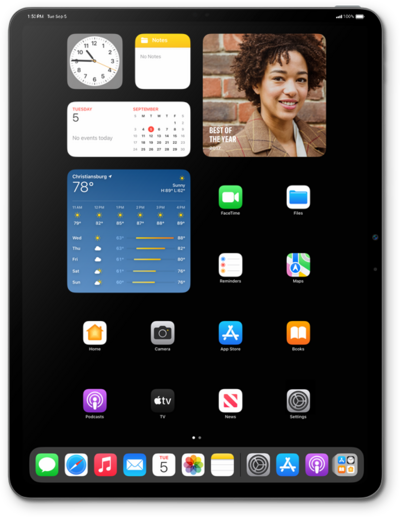
Hold the Top button to turn on your iPad, and then swipe up from the bottom of the “Hello” screen to start the setup process.
If you are using a device with a home button, press the Home button instead of swiping up from the bottom of your screen.
Select your language.
Select your country or region.
Choose your appearance preferences and tap Continue.
You can use another iOS device to automatically set up your new iPad. For more assistance, visit Setting up iPad with Quick Start.
Otherwise, tap Set up without another device to continue the setup process.
Select your Wi-Fi network, enter its password, then tap the Checkmark icon.
Tap Learn More to view Apple’s data-collection and privacy policies, including information about how your information is shared and stored. Otherwise, tap Continue to proceed.
Select your age range and tap Continue.
Tap Continue and follow the instructions to set up Face ID on your iPad, an important authentication system that increases your device’s security. Once complete, you’ll be able to use Face ID to unlock your iPad, confirm purchases, and sign into websites (on Safari).
If your iPad has a Home or Top button with a fingerprint sensor instead of a TrueDepth camera, you may be prompted to set up Touch ID instead.
Even if you’ve set up Face ID or Touch ID, you’ll also need to enter in a passcode that you’ll use to unlock your device when either is unavailable. Tap Passcode Options to switch between a custom alphanumeric password, a four-digit passcode, or a six-digit passcode.
Tap Don't transfer anything.
Enter your Apple ID, tap Continue, enter your password, and tap Continue again. You may be prompted to enter a two-factor authentication code to finish logging in, which will be sent to one of your other Apple devices.
You will then be asked to agree to Apple’s Terms and Conditions to continue setup. Tap Agree to continue.
Tap Continue.
Tap Add This Card Later.
If you previously signed into an Apple ID during the iPad setup process, you’ll be able to tap Continue to set up Apple Pay, which allows you to link your debit or credit cards to your iPad. You can then use your iPad to pay for digital and physical items or transfer money to your contacts.
Tap Set Up Apple Intelligence.
If your device does not support Apple Intelligence, the initial setup of your device will skip to setting up Siri instead.
Tap Not Now.
Tap Not Now again.
Tap Continue to set up Siri, the digital assistant built into iOS. You may be asked to say a few phrases as part of the setup process.
You’ll then be able to launch Siri by saying, “Hey, Siri!” or by holding down your iPad’s power button for a few seconds.
Tap Continue again.
Tap Continue again.
Tap Set Up Later.
Tap Set Up Later again.
Tap Get Started to complete the set up.
You've completed the steps!
