Set your default SIM for calls, texts, and cellular data
Razr+ 2026
Set your default SIM for calls, texts, and cellular data
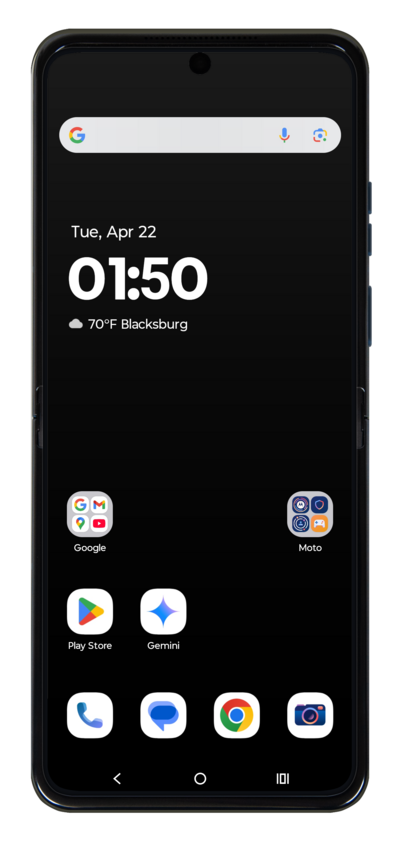
Discover how to configure your phone's default SIM settings. This guide covers selecting your primary SIM for making calls, sending texts, and accessing cellular data, streamlining your dual-SIM experience.
1.
From the Settings app, tap Network & internet.
2.
Tap SIMs & mobile network.
3.
Edit the following settings to set your SIM preferences:
- Calls - Select which SIM you'd like to use by default for voice calls—or choose Ask me every time to be prompted each time you make a call.
- Text - Select your default SIM for sending text messages.
- Mobile data - Tap SIM for mobile data, then select on SIM to be active for mobile data. If a default is already set, you’ll see a notification letting you know.
4.
You've completed the steps!
