Mobile Hotspot
Mobile Hotspot
In this tutorial, you will learn how to:
• Turn mobile hotspot on/off
• View mobile hotspot network name & connected devices
• Configure hotspot settings
When Mobile Hotspot is enabled, the  Mobile hotspot icon will be displayed in the Notification bar.
Turn mobile hotspot on/off
- Swipe down from the Notification bar with two fingers, then select the
 Settings icon.
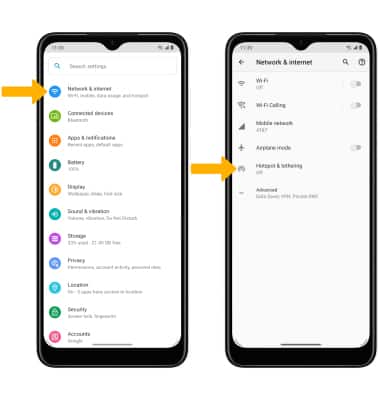
 - Select Network & internet, then select Hotspot & tethering.
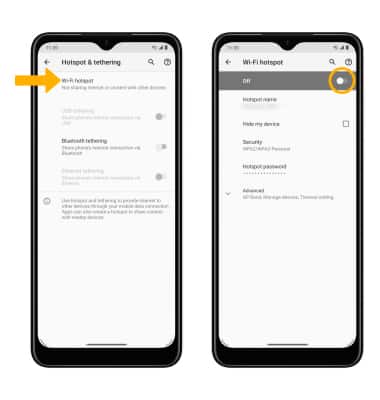
3. Select Wi-Fi hotspot, then select the Wi-Fi hotspot switch.
Note: If prompted, select OK to confirm. If Wi-Fi is turned on, you will be prompted to select TURN OFF.
View mobile hotspot network name & connected devices
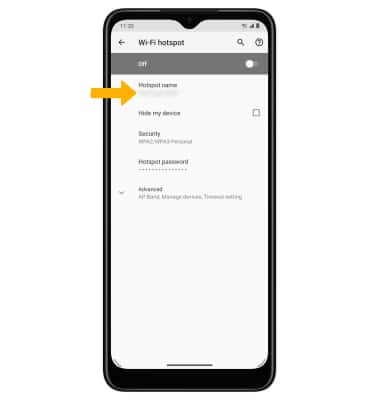
VIEW MOBILE HOTSPOT NETWORK NAME: The Mobile Hotspot Network name will be displayed on the Mobile Hotspot screen.
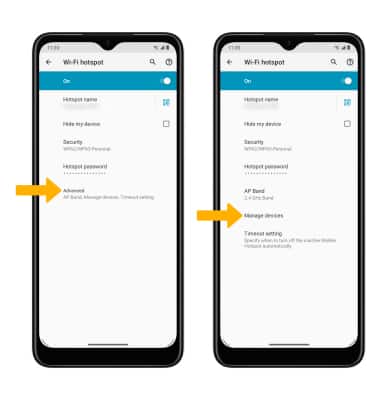
VIEW CONNECTED DEVICES: From the Hotspot & tethering screen, select Advanced > Manage devices. Connected devices will be displayed.
Configure hotspot settings
1. From the Mobile Hotspot screen, select the desired network setting:
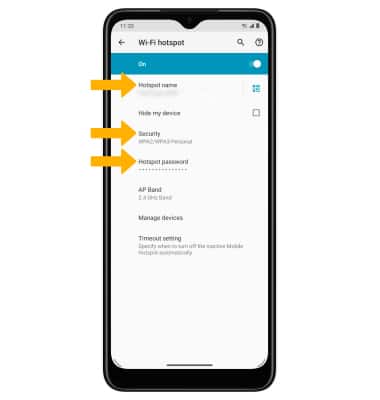
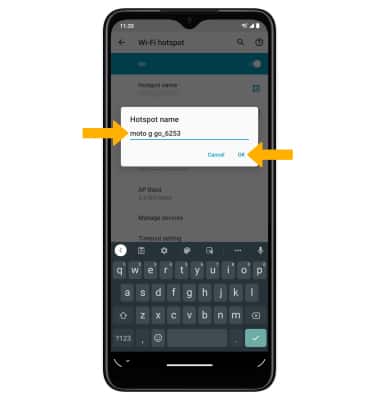
• HOTSPOT NAME: Change the N****ame of the Mobile Hotspot network.
• SECURITY: Change the Security type of the Mobile Hotspot network.
• HOTSPOT PASSWORD: View or change the Password of the Mobile Hotspot network.
2. Edit the desired information, then select OK when finished.