Wi-Fi
Wi-Fi
Access the Mobile Hotspot tutorial for information on connecting via a hotspot or tethering.
In this tutorial, you will how to learn:
• Access Wi-Fi
• Connect to a Wi-Fi network
• Wi-Fi options
• Connect to a hidden network
When connected to a Wi-Fi network, the  Wi-Fi connected icon will be displayed in the Notification bar.
Note: Data transmitted over a Wi-Fi network does not count toward your AT&T data plan and will not be billed. When using the AT&T network, data rates apply.
Access Wi-Fi
Swipe down from the Notification bar, then select and hold the Wi-Fi icon.
Connect to a Wi-Fi network
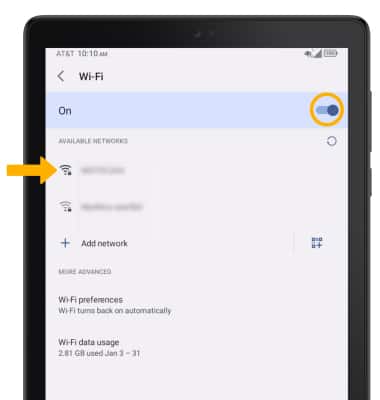
If Wi-Fi is disabled, select the Wi-Fi switch to enable Wi-Fi services. When Wi-Fi is enabled, select the desired Wi-Fi network to establish a connection.
Note: If connecting to a secure network, enter the Wi-Fi password then select CONNECT. Secure networks will display with a Lock icon.
Wi-Fi options
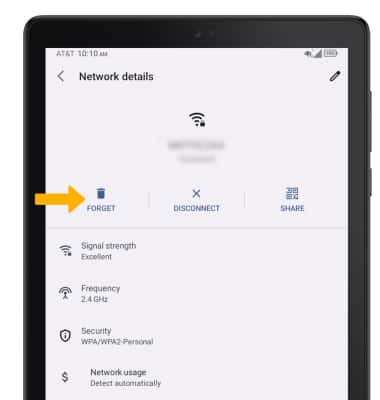
FORGET NETWORK: Select the  Settings icon next to the desired network, then select FORGET.
Connect to a hidden network
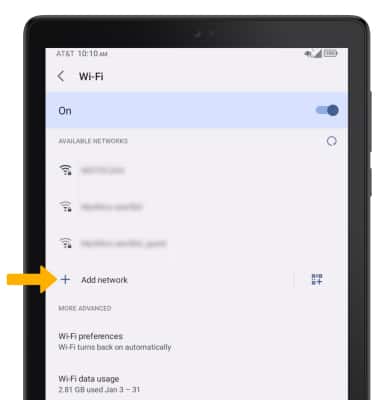
From the Wi-Fi screen, select Add network at the bottom of the Wi-Fi network list.Note: When connecting to a hidden network, you will be prompted to enter the network SSID, security type, and password (if necessary) to continue.
Tips
TURN ON WI-FI AUTOMATICALLY: From the Wi-Fi screen, select Wi-Fi preferences then select the Tu****rn on Wi-Fi automatically switch.
OPTIMIZE BATTERY LIFE: Turn Wi-Fi off when not in use. View Optimize Battery Life for more information.