Using Smart select
Galaxy Note 20 Ultra 5G
Using Smart select
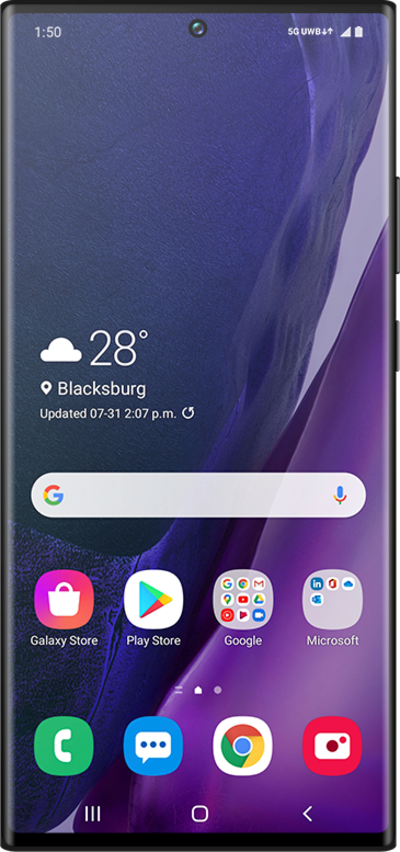
Explore how your device can take screenshots of whatever is currently on your screen using your stylus. Once a screenshot has been taken, you can draw on it or place text on it.
1.
From a screen you'd like to capture, tap the Air Command icon with your S Pen.
2.
Tap Smart select with your S Pen.
3.
Touch and drag your S Pen around the content you'd like to capture.
4.
To save your selection to the Gallery, tap the Save icon.
You can access this note directly from the S Note app.
5.
You've completed the steps!
