Limiting an iPad to a single app using Guided Access
Limiting an iPad to a single app using Guided Access
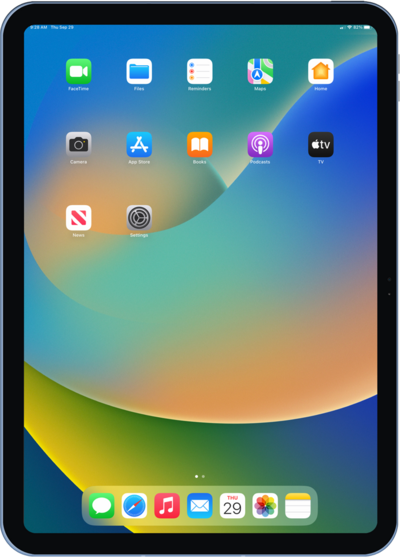
From within the Settings app, tap Accessibility.
Scroll to and tap Guided Access.
Tap or slide the Guided Access switch to ON.
The following steps show how to use Guided Access.
To enable Guided Access, triple-click the Top button.
If your iPad has a home button, triple-tap the Home button instead.
Select Session Settings.
Tap or slide the switch for your preferred settings that will be available or unavailable when Guided Access is enabled.
Tap outside of the Session Settings popup to close it.
Drag your finger around any on screen option you want to be disabled while Guided Access is enabled.
You can further adjust the disabled area by dragging the borders of the highlighted area.
Tap Start to enable Guided Access.
Enter your new Guided Access Passcode.
This passcode is different than your Lock screen passcode.
Verify your passcode.
To disable Guided Access, triple-click the Top button.
If your device has a home button, triple-tap the Home button instead.
Enter your Guided Access Passcode.
Tap End.
You've completed the steps!
