Using TalkBack
Moto G Power - 2026
Using TalkBack
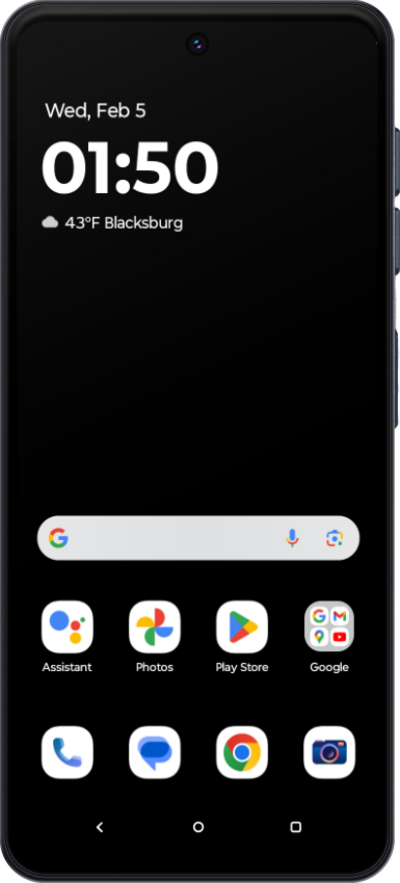
Use the TalkBack function on your device to help you navigate it by touch. The device will speak what is on the screen an you can tap anywhere on the screen to tap the item that is being spoken.
1.
From the Settings app, scroll to and tap Accessibility.
2.
Tap TalkBack.
3.
Tap Settings.
4.
Select your preferences.
From this screen, you can adjust TalkBack settings including sound volume, spoken passwords, and more.
5.
Press the Back button.
6.
Tap or slide the Use TalkBack switch to ON.
7.
Tap Allow.
8.
Swipe from left to right until Use TalkBack is selected.
9.
Quickly tap the screen twice to activate the selected item.
Performing a double-tap activates the selected item.
10.
Swipe from left to right until Turn off is selected.
Swiping left and right navigates between items read aloud. Using two fingers allows users to scroll.
11.
Quickly tap the screen twice to activate the selected item.
12.
You've completed the steps!
