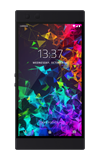
- From the home screen, select the Gmail app.
Note: The Gmail app allows any email account to be set up even if it is not a Gmail account. If you already have an email account set up and wish to add another account, from the home screen select the Gmail app > Menu icon > scroll to and select Settings > select Add account > follow the prompts.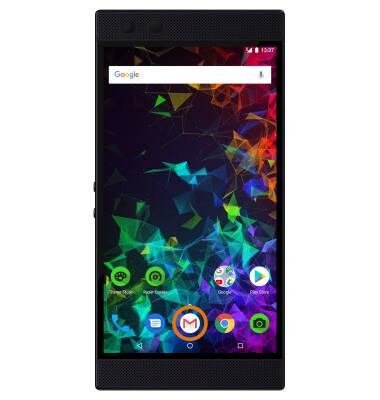
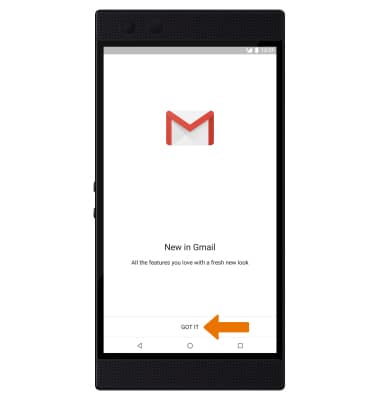
- Select GOT IT.
- Select Add an email address, then select the desired email provider.
Note: To manually configure email settings (such as server settings and domain), select Other > enter your email address > MANUAL SETUP, enter the required information, then select NEXT. If your corporate server requires remote security administration, you will be prompted to set up security features. Select ALLOW to continue.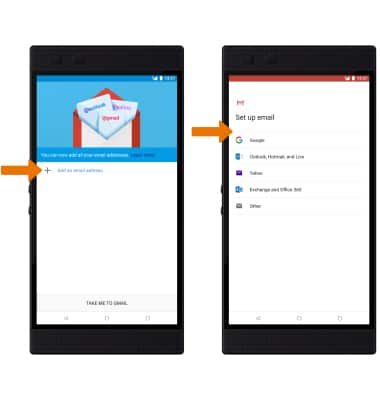
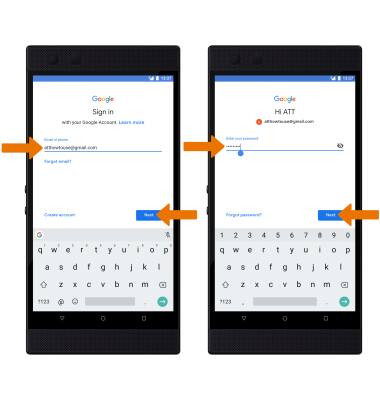
- Enter the desired Email address, then select Next. Enter the Password, then select Next.
- Select I agree. Review the Google Services Privacy Policy prompt, then select the Back up to Google Drive switch. Select ACCEPT when finished.
Note: Select Privacy Policy to review as desired.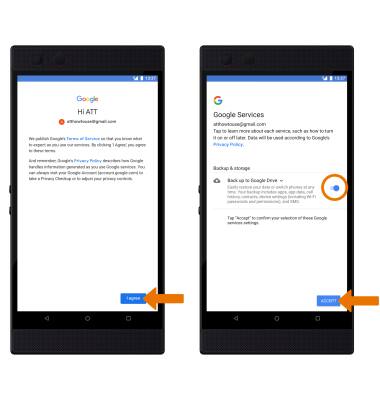
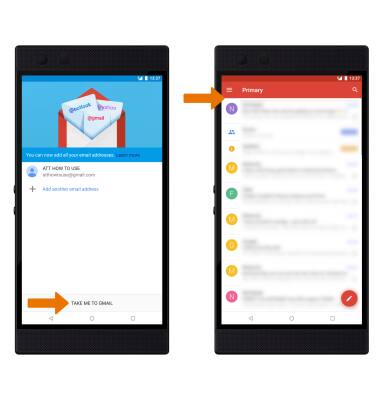
- Select TAKE ME TO GMAIL. When setup is complete, your Inbox will appear.
Set Up Email
Razer Phone 2 (0259UA20)
Set Up Email
Add your personal email accounts so you can read and send email on your device.
INSTRUCTIONS & INFO