In this tutorial, you will learn how to:
• Connect a Printer
• Connect a Printer to Your Computer
• Test Your Printer
Connect a Printer
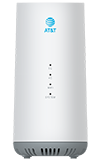
WI-FI: 1. Find Your Wi-Fi Network Name (SSID) and Password. These can be located on a label on the bottom of the 5G Gateway or in the device dashboard.
2. Use the Printer’s Control Panel On the printer, navigate to the network or wireless settings menu. Select “Wi-Fi Setup Wizard” (name may vary by printer brand).
3. Select your 5G Gateway’s network name (SSID). Enter the Wi-Fi password, then select Connect.
ETHERNET: Plug an Ethernet cable from the printer into an available LAN port on the 5G Gateway. The printer should auto-connect to the network. Some printers may require you to confirm network settings on the printer’s control panel.
Connect the Printer to Your Computer
WINDOWS: 1. Settings > Devices > Printers & scanners > Add a printer or scanner.
2. Windows should detect the printer automatically. If not, click “The printer that I want isn’t listed” and follow the prompts.
MAC: 1. System Preferences > Printers & Scanners > + (Add)
2. Select your printer from the list.
Test Your Printer
• Print a test page from your computer to confirm connectivity.