- To set up corporate email, from the home screen, swipe down from the Notification bar.
Note: Before setting up an Exchange email account, you will need your account's server settings. If you don't know this information, please contact your IT team or email provider for assistance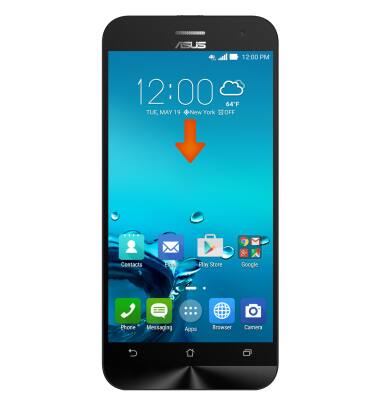
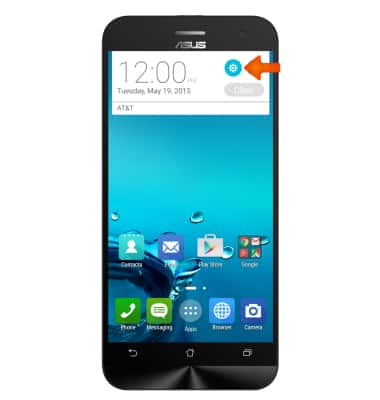
- Tap the Settings icon.
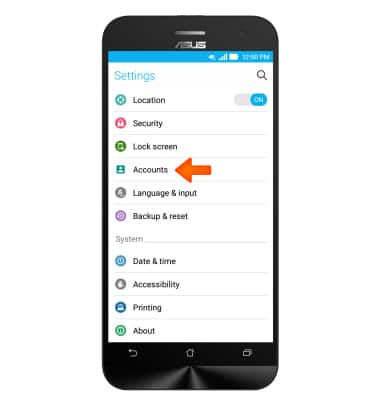
- Scroll to and tap Accounts.
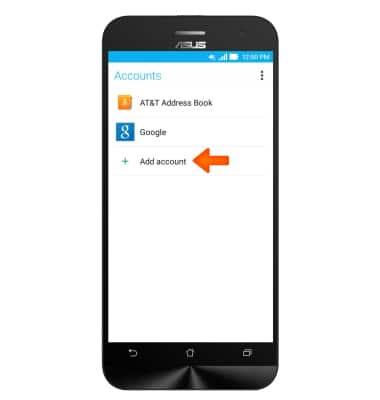
- Tap Add account.
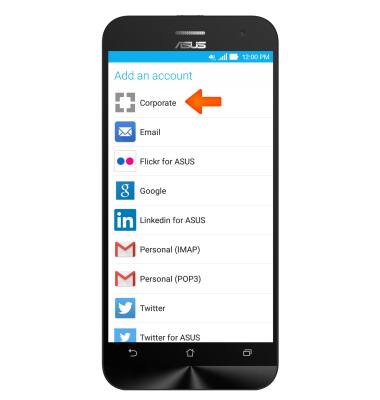
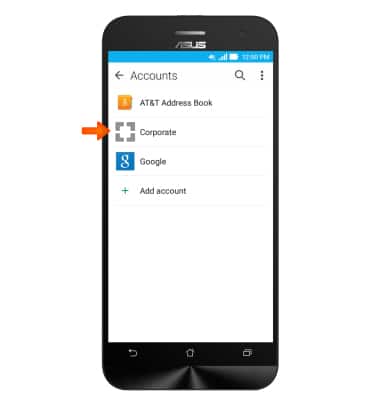
- Tap Corporate.
- Enter the Account information in the given fields, and tap Next.
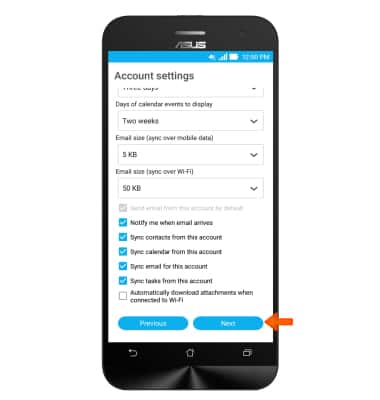
Note: If multiple accounts are configured, tap to check Send email from this account by default if desired.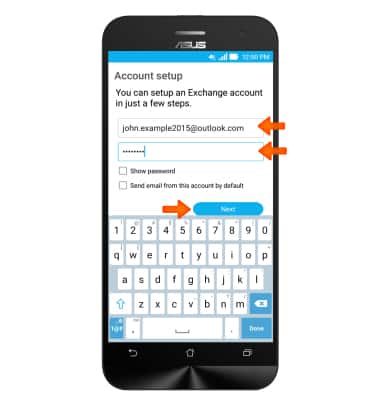
- Enter the Domain and Server information, adjust any other desired settings, and then tap Next.
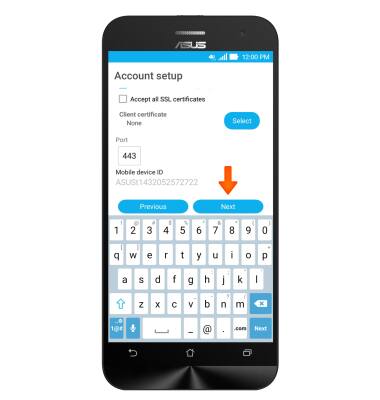
- Adjust the account settings as desired, and then tap Next.
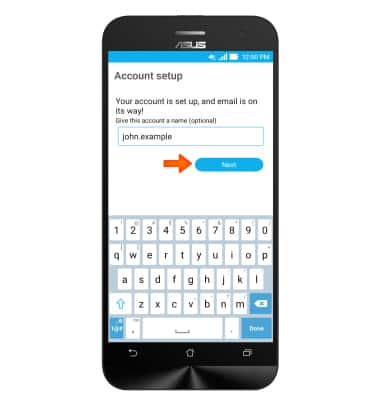
- Change the account name if desired, then tap Next.
- The account is now linked to the device.
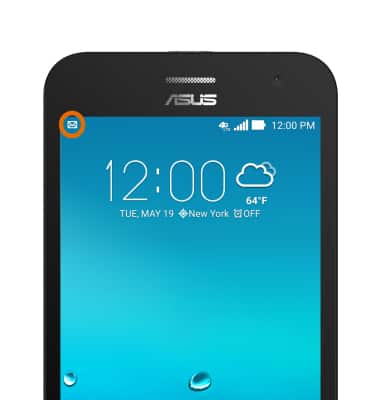
- When a new email is received the New Email icon will appear in the Notification bar.
Set up Corporate Email
ASUS ZenFone 2E (Z00D)
Set up Corporate Email
Add your Exchange email account to sync email, contacts, calendar, and notes to your device.
INSTRUCTIONS & INFO